Instant replay for a live sports stream
Replay the goal, the knockout or the finish seconds after it happened: capture from Program, play it back in slow motion, and cut back live.
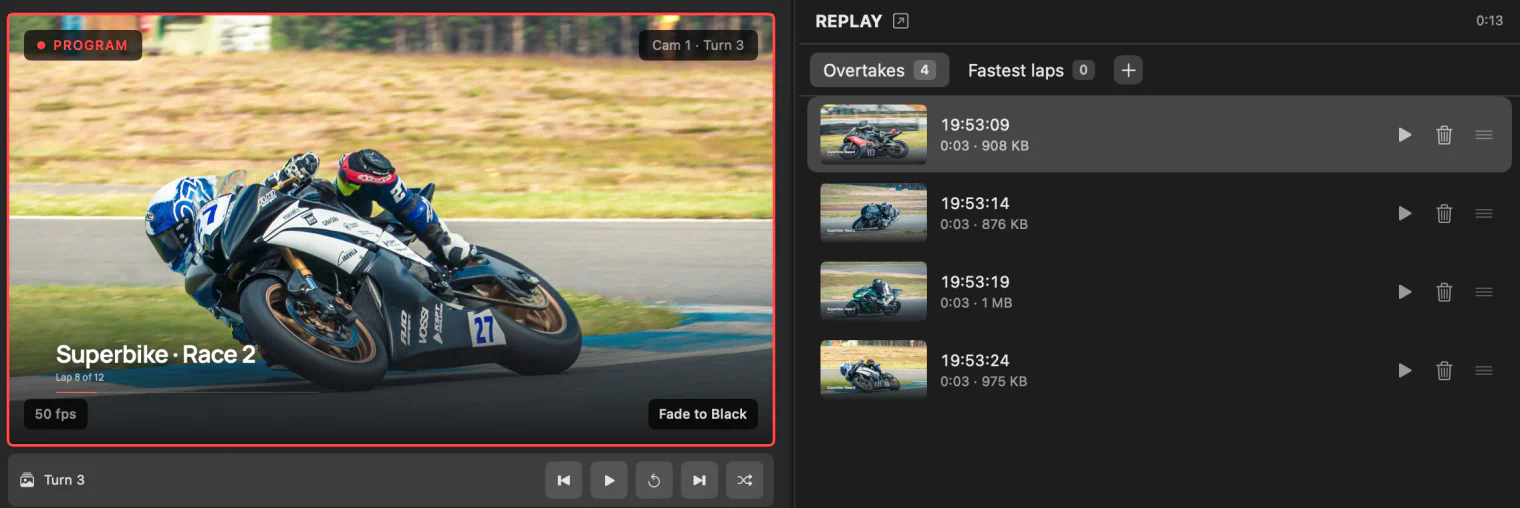
In sport the moment is over before anyone can react. InterDirector keeps the last stretch of your show in memory, so when something happens you capture it after the fact and play it back while the game goes on. One operator can run it, from a single key.
Replay works from Program, what your audience has just seen, rather than from each camera separately.
1. Add a Replay input
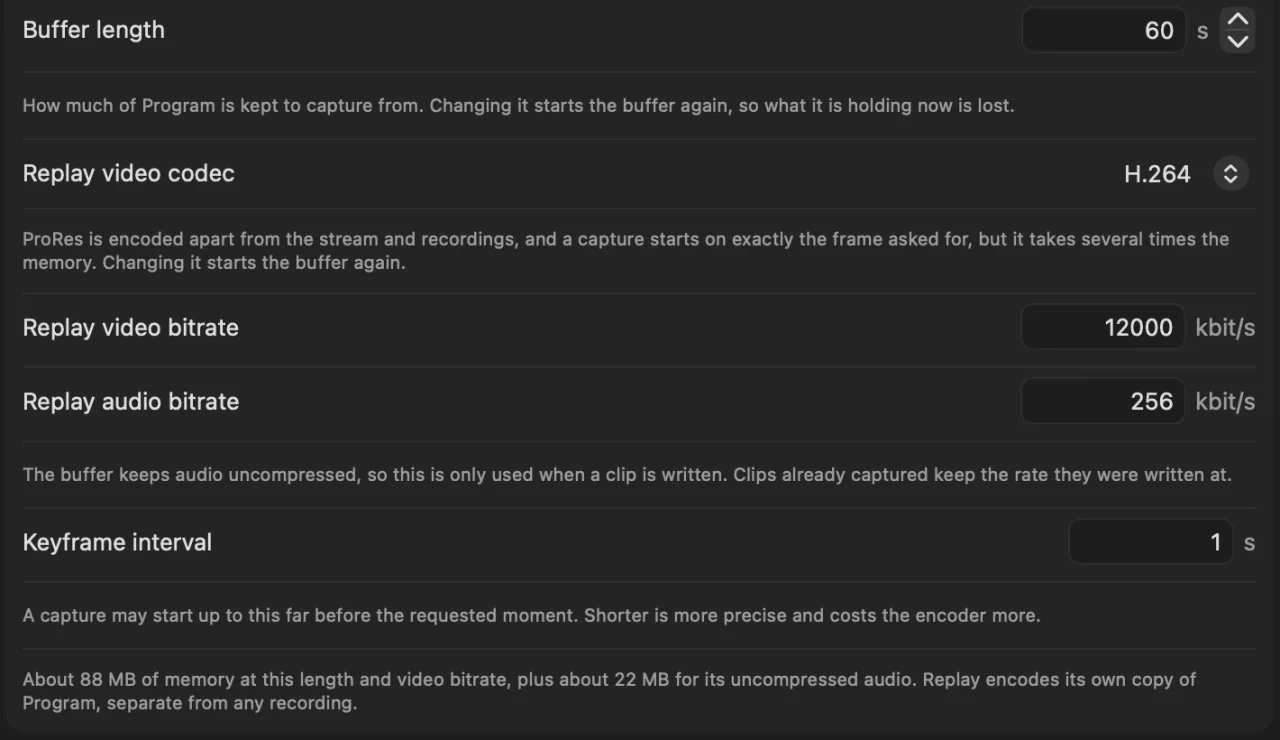
Press Add Input… and choose Replay. That is all it takes to start the buffer: from then on InterDirector keeps the last minute of Program, with its sound, for as long as the show is open. Set Buffer length anywhere from 10 seconds to 5 minutes on the input’s settings.
The buffer is H.264 unless you choose ProRes 422 Proxy or LT. ProRes leaves the Mac’s video encoder to the stream and the recordings, and lets a clip start on exactly the frame you asked for; it takes more memory, and needs an M1 Pro, M1 Max or any later Mac.
2. Make buckets for the moments you will want
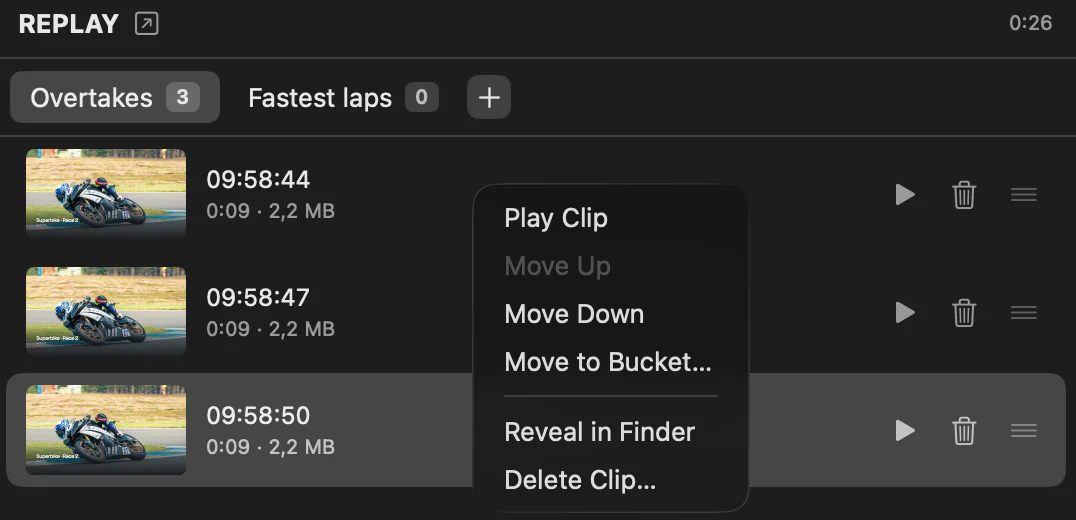
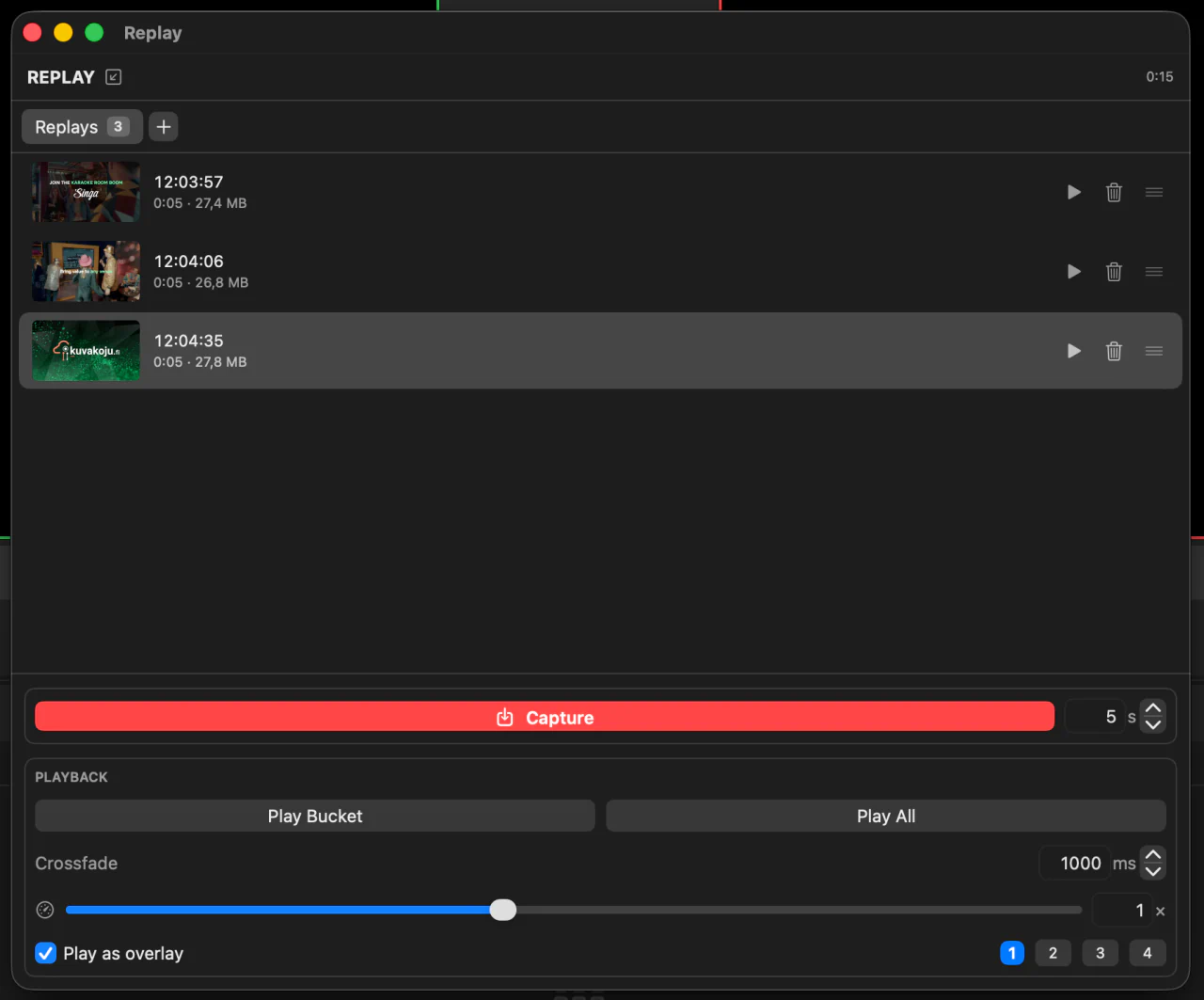
Clips go into buckets, named lists in the replay panel: “Goals”, “Saves”, “Round 1”, whatever the sport needs. Select the bucket before you capture, and the clip goes there.
A clip that landed in the wrong bucket is easy to move: right-click it in the clip list and choose Move to Bucket…. Move Up and Move Down, in the same menu, change its place in the bucket, so a bucket plays in the order you want.
3. Capture
When something happens, press Capture. The last 10 seconds of Program become a clip in the selected bucket; change the number beside the button first if the moment was longer. Put Capture on a key or a Stream Deck button and you can grab the moment without looking away from the game.
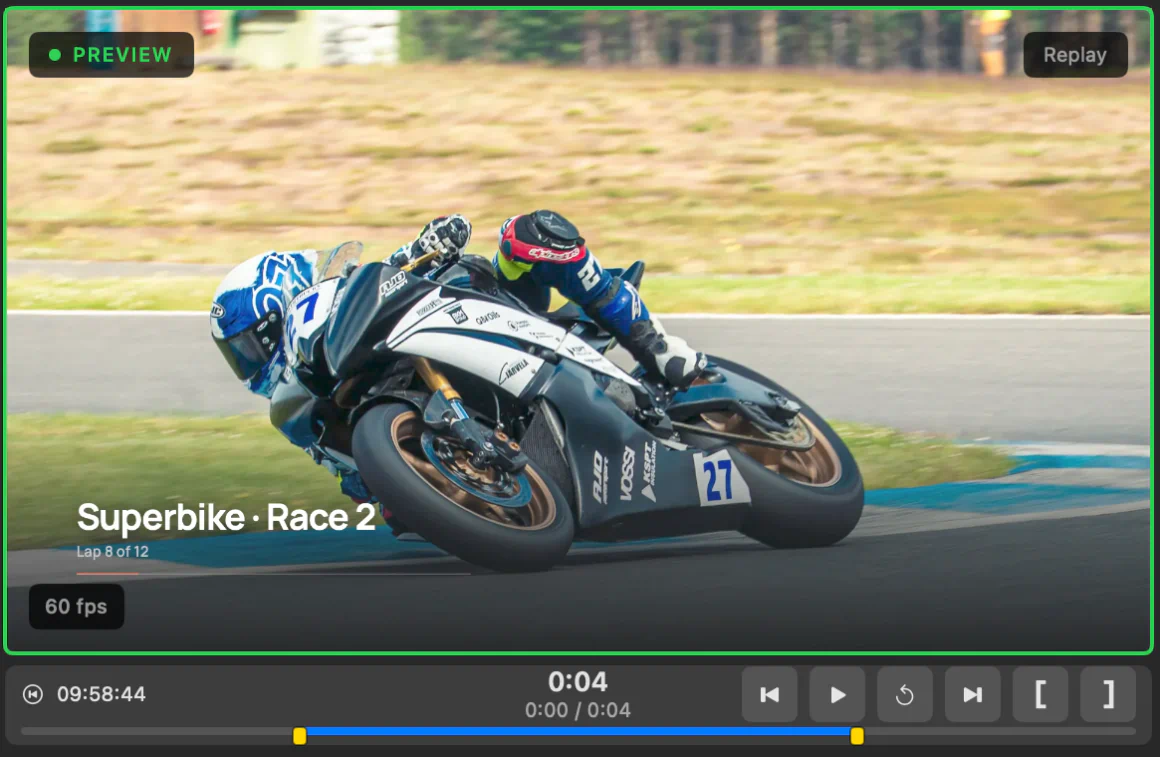
Grabbed a little too much? Trim the clip rather than capture it again. Select it in the clip list and put the Replay input in Preview: the strip under Preview shows the whole clip. Drag along it to find the frame where the moment starts and press [, then find where it ends and press ]. The clip now plays only that part, on its own or in its bucket, and nothing is cut from the file: Clear Trim in the clip’s menu brings all of it back. See Trim a clip.
4. Play it back
- Play Clip, from a clip’s menu, plays that one.
- Play Bucket plays the selected bucket in order: every goal of the match, say.
- Play All plays everything.
The speed slider goes from 0.25× to 2×. Below normal speed is slow motion, and the sound plays slower and lower with it. Crossfade sets how one clip dissolves into the next.
Leave Play as overlay off and a replay takes Program like a cut to any other source. Turn it on and the replay plays over Program on an overlay layer instead, so your score graphics, or a camera on the coach, can stay where they are.
5. Back to live
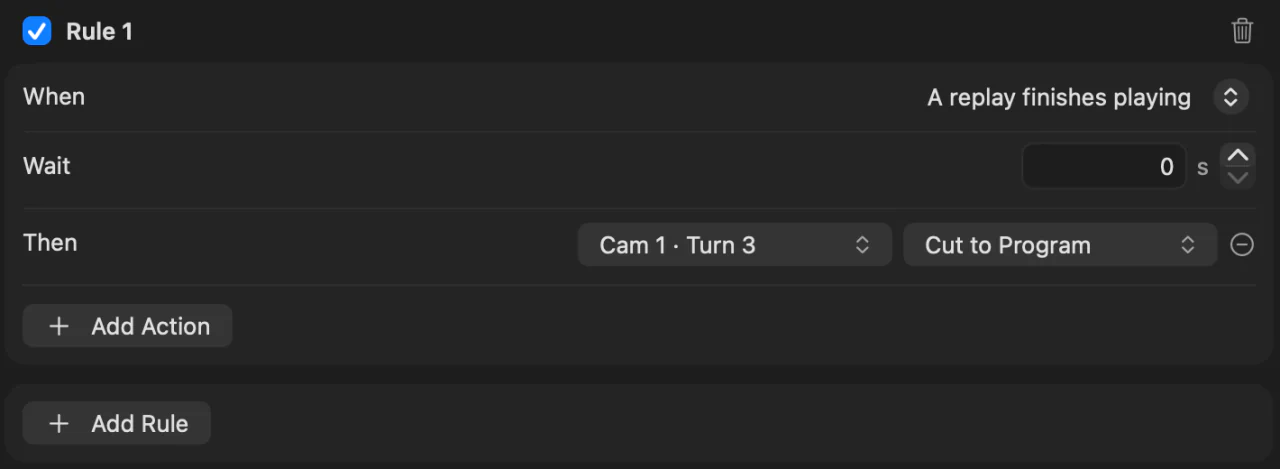
Stop the replay, or cut to a camera, and you are live again. To do it without a hand free, write a rule: when a replay finishes, cut to the main camera. See Automation rules.
The clips stay yours
Each clip is an ordinary movie file, MP4 or a QuickTime MOV with ProRes, in a folder for the show, and comes back in its bucket next time you open the show: ready for a highlights edit afterwards.