Line up your cameras with the sound
Lips that move before the voice? Measure how far each camera is behind the microphone with a phone on stage, and set every delay in one go.
Every camera reaches your Mac a little late, and each by a different amount: a USB camera, an NDI camera, a phone over the internet as much as two seconds. The microphone on stage is usually quickest of all. On a wide shot nobody notices, but cut to a close-up of someone speaking and the lips run ahead of the voice.
The cure is to hold the faster sources back until the slowest arrives, and InterDirector can work out by how much. Sync Cameras and Audio watches a phone on stage that flashes and beeps, and measures every camera against the sound at once. It takes ten seconds and two people: one on stage with a phone, one at the Mac.
1. Open it, and the phone page
At the Mac, choose Tools ▸ Sync Cameras and Audio…. The window opens filling the screen: what to measure on the left, the results on the right.
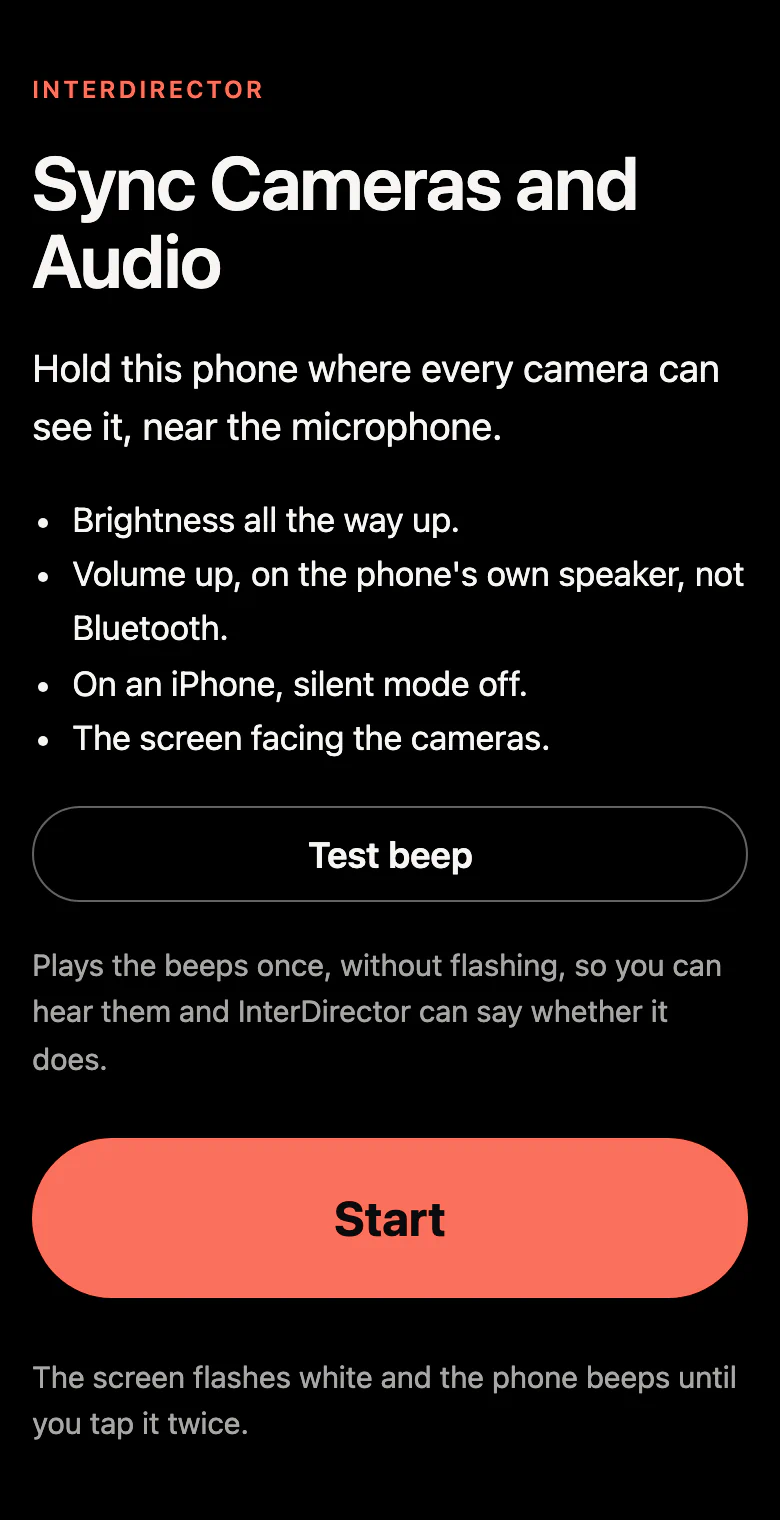
On stage, open interdirector.com/sync on a phone, any phone with a browser. Go through its short checklist: brightness all the way up, volume up on the phone’s own speaker rather than Bluetooth, silent mode off on an iPhone. Test beep plays the beeps once, without flashing, to check the microphone hears it.
2. Choose the sound, and tick the cameras
In the window, choose the Sound everything is timed against: the stage microphone, or the feed from the sound desk, whichever your stream carries. Then tick the Cameras to line up, all of them to begin with.
A second microphone, or a feed from another room, can be lined up too: tick it under Other sounds and it is measured against the same beep.
3. Start the phone, and wait for green
On the phone, press Start. It flashes white and beeps in an uneven rhythm. Hold it close to the microphone, with the screen facing the cameras.
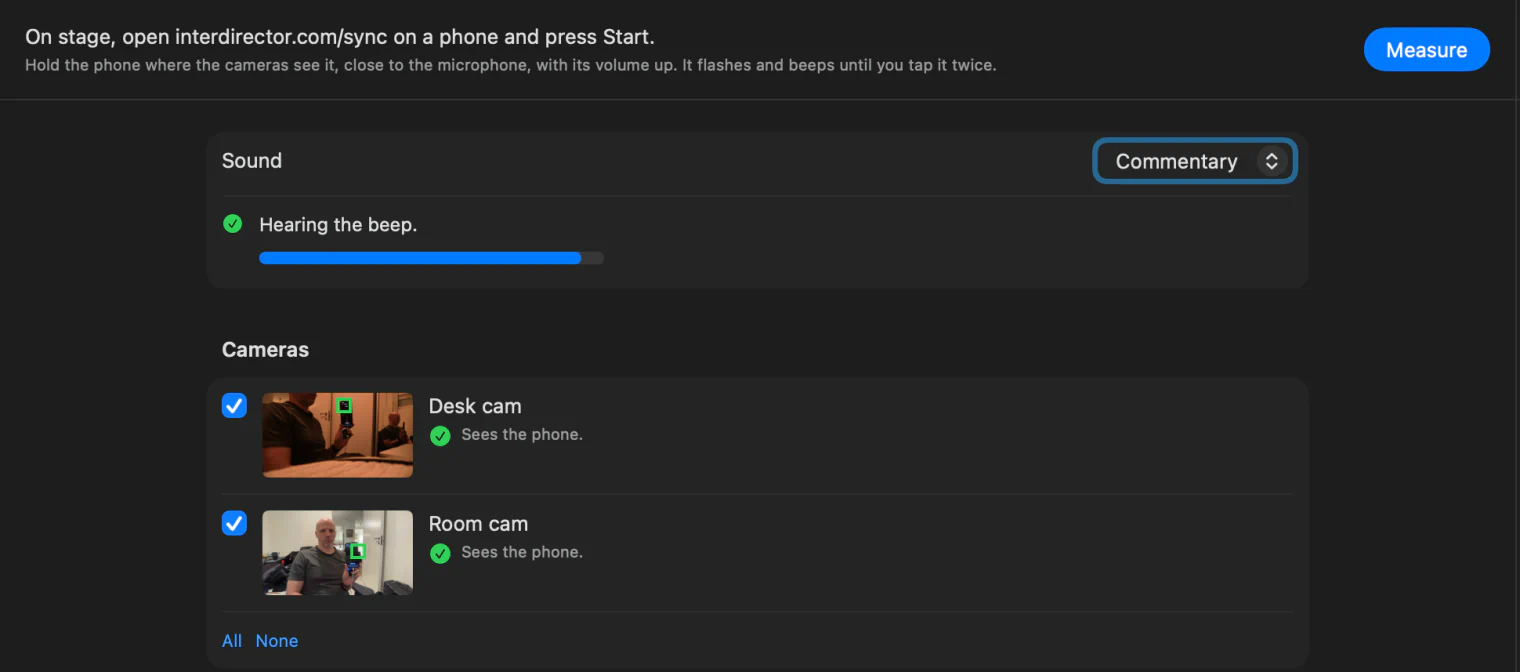
Before you measure, the window tells you what it can see and hear. The sound row has a meter, and says whether it hears the beep or what to do: turn the phone up, bring it nearer. Each camera has a small live picture with a box where it sees the phone, and says whether it sees it, or what to try. When the rows you want are green, you are ready.
4. Measure, and apply
Press Measure. Ten seconds later each camera says how far it is from the sound, “Picture 120 ms behind the sound” or “In step with the sound”, and beside it the delay that lines it up: 0 → 140 ms.
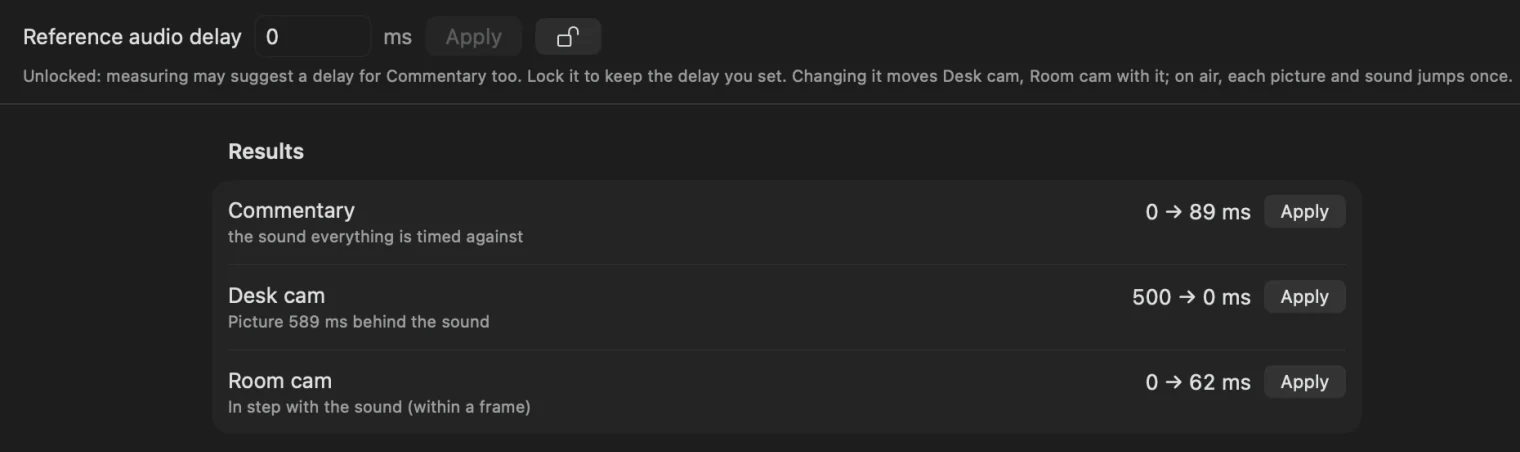
Press Apply All, or Apply beside one source at a time. The window measures again by itself, so every row then says whether it is now in step. The phone can stop: double-tap it.
Nothing can arrive before it does, so InterDirector lines things up by holding the quicker sources back to meet the slowest. That is why the microphone gets a delay too, when every camera is behind it, unless you have locked its delay (below).
Cameras that cannot all see the phone
A camera at the back of the hall and one beside the stage rarely see the same spot. Keep them all ticked, turn the phone to one camera, press Measure, then turn it to the next and measure again. Each camera keeps its last reading in which it saw the phone, and the delays are worked out from the whole list.
5. Lock the sound’s delay
At the top of the results is the Reference audio delay: the delay of the sound everything is timed against. If you know what it needs in your venue, type it, press Apply, and click the lock beside it. Measuring then fits every camera and sound around it and never changes it. If a camera is so far behind that it cannot catch up, the window says how far the reference delay must be raised, and Raise to does it. Unlocked, measuring may suggest a delay for the sound too.
Change the reference delay later, even during a show, and every ticked camera and sound moves with it, so they all stay in step and what you measured stays true: use it when everything needs to wait a little longer, to meet a feed that arrives later still. Reset and Clear Delays sets the cameras back to 0 and leaves the reference delay as you set it.
6. During the show
Lined up once, the delays stay with the Show, and so do what you ticked and the lock. Measure again whenever a camera changes: a new cable, another phone, an NDI camera on a busier network.
How close it gets
To about one frame of each camera: 17 ms at 60 frames a second, 33 at 30. Sound travels about 3 ms a metre, so keep the phone near the microphone; a Bluetooth speaker adds a delay of its own, so use the phone’s speaker. Each source can be held back by up to four seconds, which covers even a phone over mobile data.