Record every camera to its own file
ISO recording on a Mac: record each camera clean, to its own file, alongside the live show, so it can be edited again afterwards.
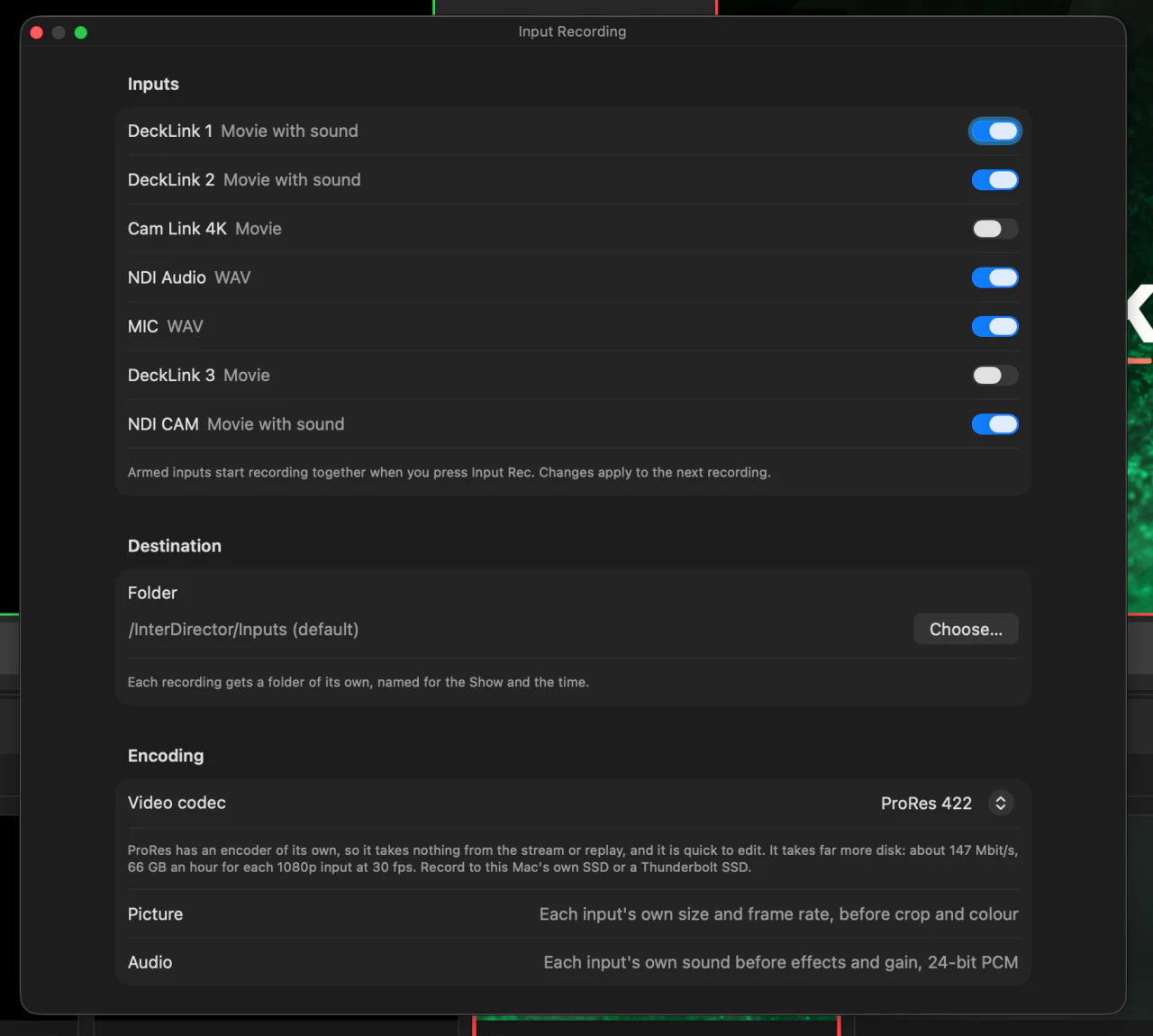
A live show is cut once, as it happens. Recording each camera on its own as well, often called ISO recording, means you can cut it again afterwards: fix a late cut, use the angle you missed, or make short clips for social media from the best shots. InterDirector records the cameras and the switched Program at the same time.
What gets recorded
Each armed input is written to a file of its own, exactly as it arrived: its own resolution and frame rate, with its own sound, before any crop, colour correction, effects or gain you added in the show. Inputs with sound alone, such as a microphone, are written as WAV files.
You can arm NDI inputs, network streams, USB cameras and capture devices, Blackmagic inputs, audio devices and Window inputs.
1. Choose the inputs
Press the gear beside Input Rec to open the Input Recording window. Tick the inputs you want under Inputs; what you arm is saved with the show.
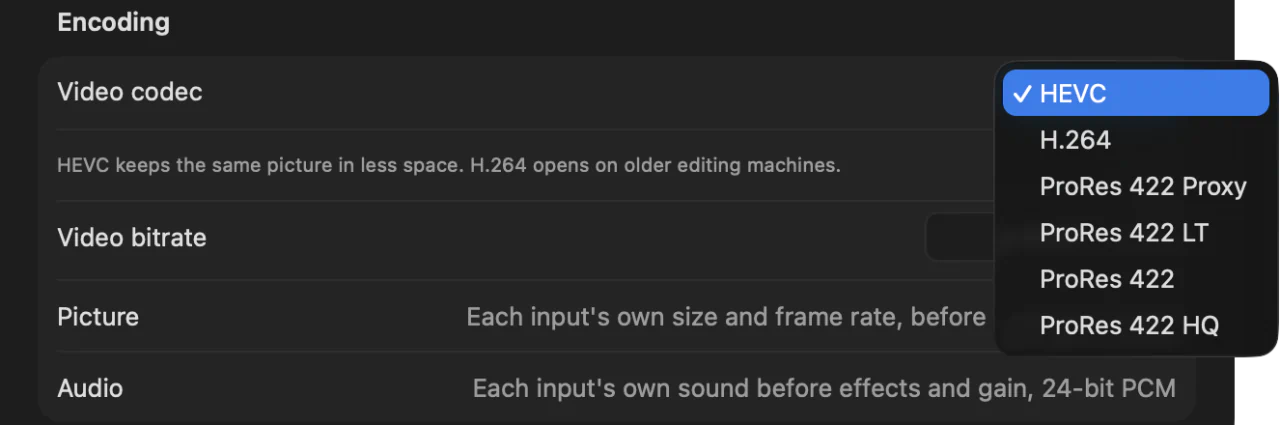
Under Destination, choose the Folder, or leave it on the default, beside your Show file. Under Encoding, choose the Video codec:
| Codec | When to use it |
|---|---|
| HEVC | The smallest files, for a few inputs. |
| H.264 | For editing machines that cannot play HEVC. |
| ProRes 422 Proxy, LT, 422 or HQ | For many inputs at once, and the easiest to edit. |
For more than a few inputs, choose ProRes. HEVC and H.264 share the Mac’s video encoder with the stream, replay and Program’s recording; ProRes is encoded separately, so far more inputs can record without the stream dropping a frame. On an M4 Pro MacBook Pro, more than twenty 1080p50 inputs kept up in ProRes. ProRes needs an M1 Pro, M1 Max or any later Mac.
2. Make sure the disk keeps up
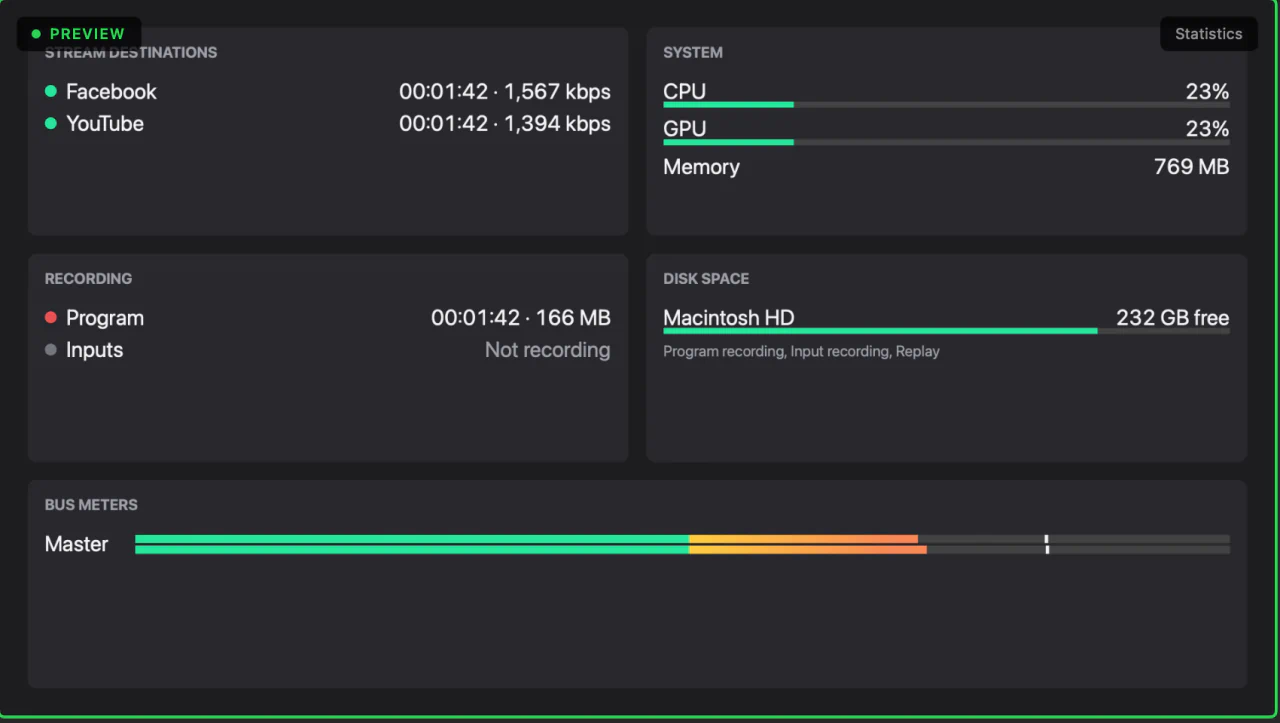
ProRes files are large: eight 1080p50 inputs in ProRes 422 Proxy write about 75 MB a second, around 270 GB an hour. Record to the Mac’s own SSD or a fast Thunderbolt SSD, never a spinning disk or a USB stick. Try the whole setup on the same Mac and disk before the real show.
3. Record
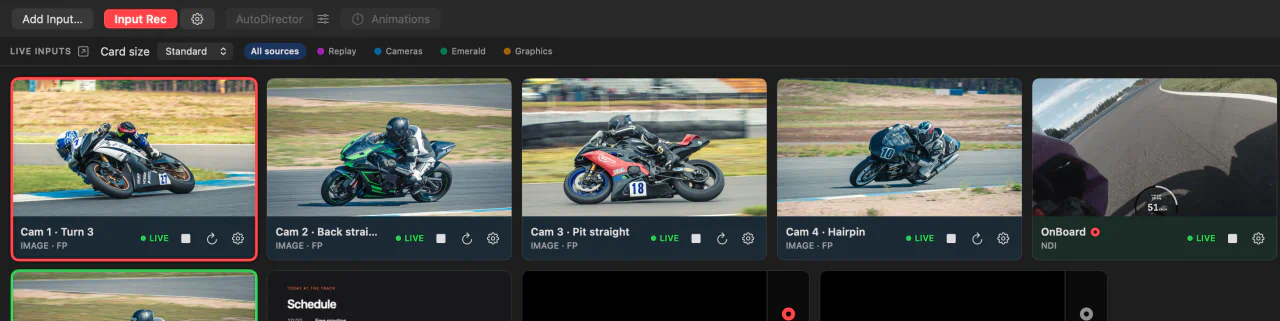
Press Input Rec. Every armed input starts at the same instant, into one new folder named for your show and the time, so the files line up when you bring them into an editor.
Input Rec shows amber for a moment while the recording starts, and turns red once every armed input is recording steadily. If the Mac or the disk cannot keep up later, it turns amber again and names the input that is falling behind, while the others carry on. Arm fewer inputs, switch to ProRes, or use a faster disk.
Record Program too
Press Record to record the switched show beside the cameras. Record without overlays in its settings keeps the graphics out of that file, so they can be changed in the edit, while the stream still carries them. Press a key for a cut mark at each moment you will want to find again, and export the recording in pieces at the marks afterwards.
Every file is written a second at a time, so if the power goes, what was recorded up to that moment still plays.