Your live show as a camera in Zoom, Teams or Meet
Send Program, graphics and all, into a video call as its camera and microphone, and bring the call back into your show without anyone hearing an echo.
A webinar, a hybrid event, a speaker joining a conference from your studio: sometimes the audience is in a video call, not on a streaming platform. InterDirector has a camera and a microphone of its own, InterDirector Camera and InterDirector Audio, that Zoom, Teams, Google Meet and any other app list beside your webcam and microphone. Choose them in the call, and everyone in it sees and hears your show: switched cameras, lower thirds, slides and all.
1. Install them once
Both are set up once on each Mac and then kept up to date with InterDirector.
- The camera: choose Tools › Install InterDirector Camera…. macOS asks you to allow it: open System Settings › General › Login Items & Extensions › Camera Extensions and turn on InterDirector.
- The microphone: choose Tools › Meeting Apps… and press Install… beside the microphone. It asks for your password, and your Mac’s sound stops for a moment while it is put in place.
A meeting app that was already open may need restarting before it lists them.
2. Choose what they send
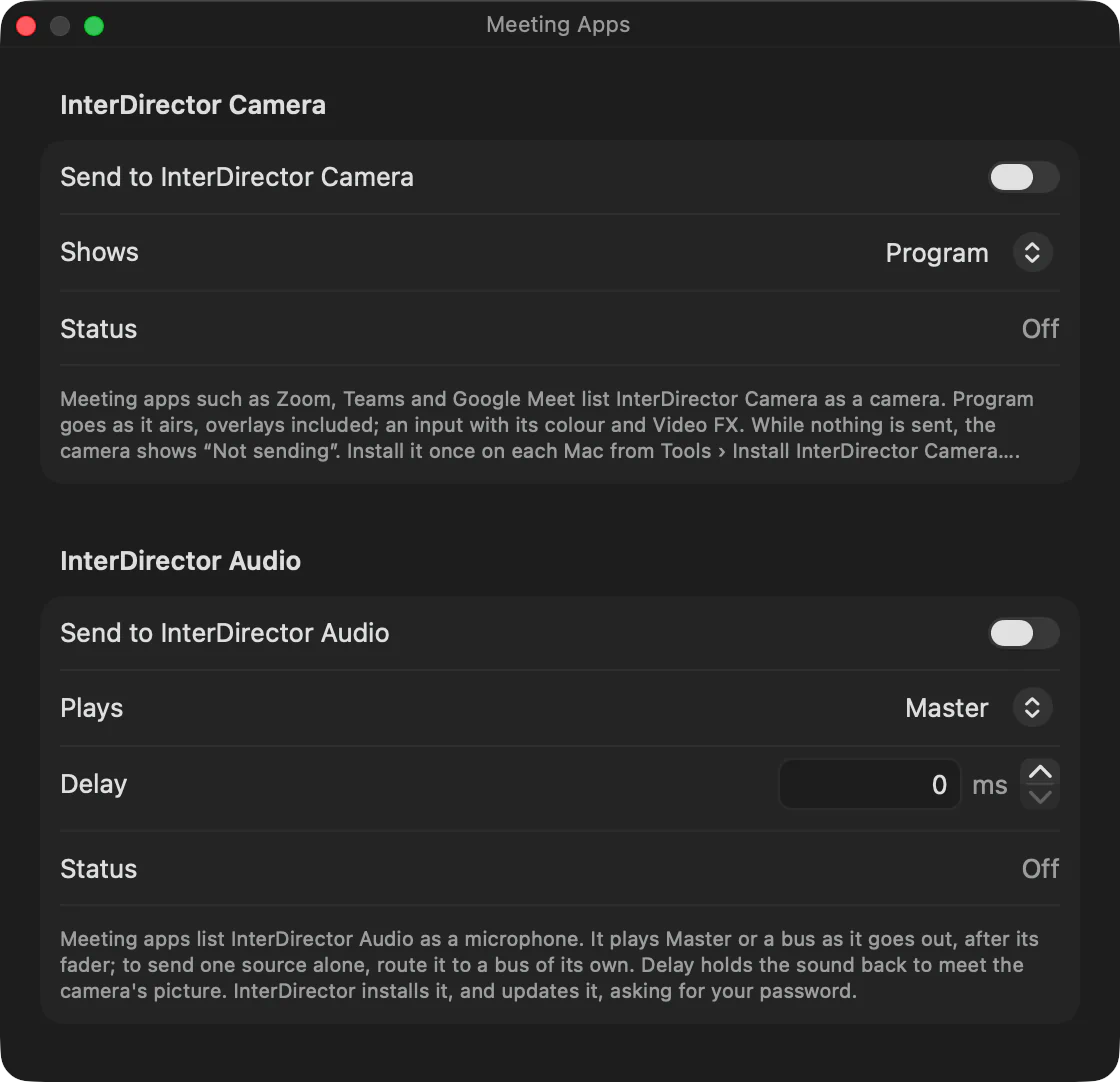
In Tools › Meeting Apps…, switch on Send to InterDirector Camera and Send to InterDirector Audio, then choose what each sends:
- InterDirector Camera shows Program as it goes out, overlays included, or one input on its own, such as a presenter’s camera with its colour and Video FX.
- InterDirector Audio plays Master, or a bus of your own.
- Delay holds the sound back, up to a second, so it meets the picture.
What you choose is saved with the Show, so the camera and microphone are sending again whenever the Show is open. Change either during the call and the meeting follows.
3. Pick them in the call
In the meeting app’s settings, choose InterDirector Camera as the camera and InterDirector Audio as the microphone. That is all the app needs to know: from now on you direct the show in InterDirector, and the call sees what Program shows.
The app sends the picture at the size it chooses, 1080p or 720p, at 30 frames a second. Your own preview of yourself in the call is usually mirrored; the others see the picture the right way round.
Meeting apps clean up a microphone for speech, and that can chop music or a jingle. If your show carries either, look in the meeting app’s audio settings for a way to turn its noise suppression off or send the original sound.
4. Bring the call into your show, without an echo
Often the call is part of the show too: a remote guest who should be on screen beside your presenter. Add the meeting app’s window as a Window input with Bring in its sound on, and the guest becomes a source you can cut to or place in a Composite.
Then there is one thing to get right. If InterDirector Audio sent Master, the guest’s own voice would go back into the call, and they would hear themselves a moment late. Send the call a mix of everything except the call:
- In the audio mixer, add a bus and name it, say, Call.
- Route your presenter’s microphone, your music and anything else the call should hear to Call, and leave the meeting app’s Window input off it.
- In Tools › Meeting Apps…, choose the Call bus for InterDirector Audio.
Master still carries everyone, guest included, for your stream and recording; the call hears everyone but itself.
The meeting app also plays the guest out of your Mac’s speakers, as it always does. Wear headphones, or the presenter’s microphone picks the guest up from the speakers and sends them back into the call after all.
Good to know
- The call sees and hears your show a moment after it happens, as any viewer does.
- During a trial the camera carries the trial’s mark, as every output does.
- Streaming and recording are separate: you can send the show to a call and to YouTube at the same time, and record it.