Build your own multiview
A monitor wall laid out your way: Program, Preview and every camera with tally borders, on any display, or over NDI to another room.
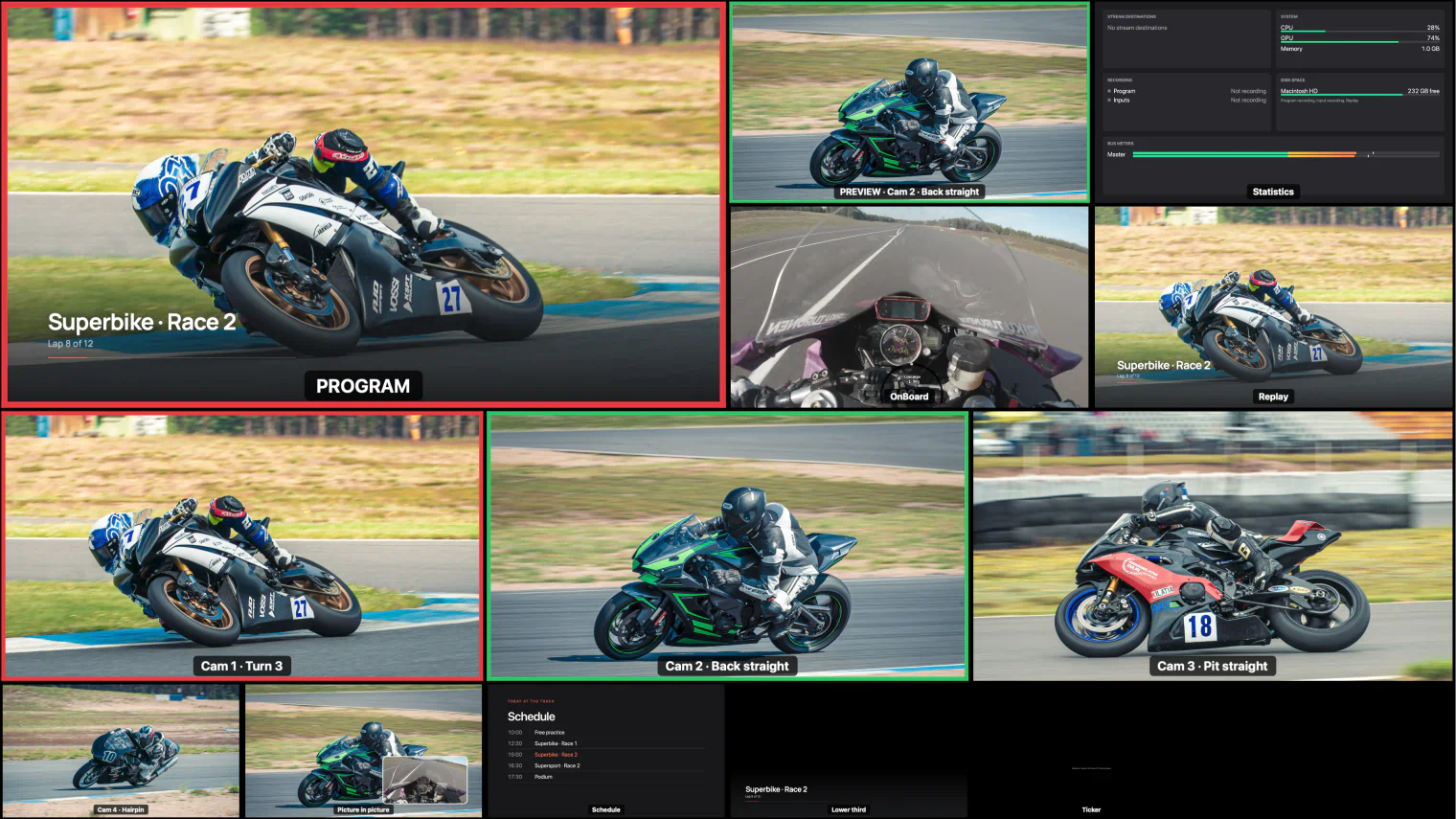
A multiview puts everything in front of you at once: what is on air, what is next, and every camera you could cut to. In InterDirector you draw the wall yourself: big windows for what matters, small ones for the rest, on as many displays as you have.
1. Put it on a display
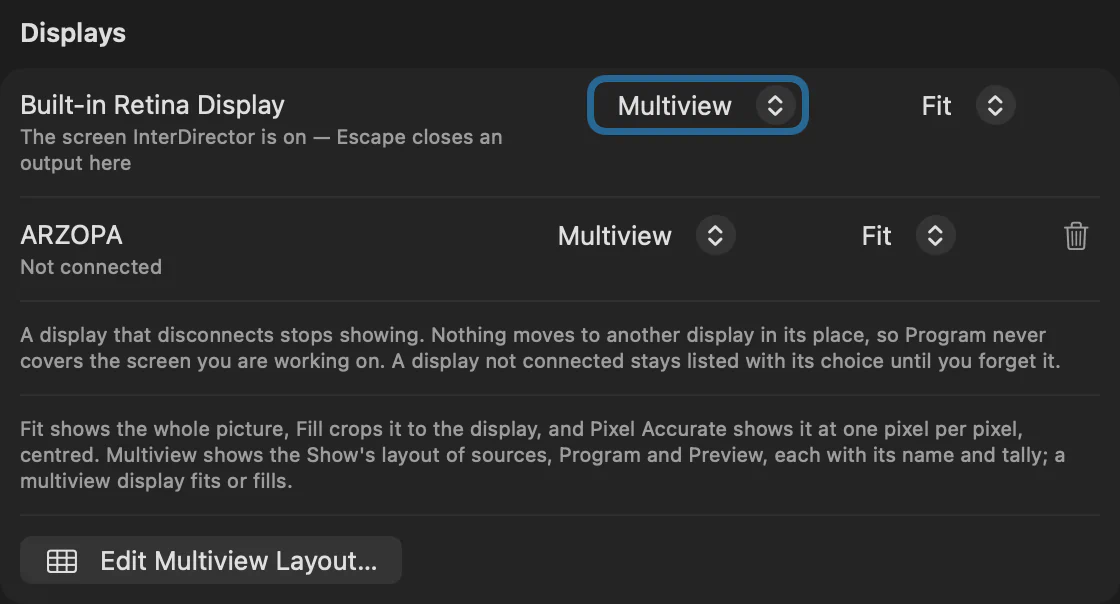
Connect a display, open the setup beside the External button, and set that display to Multiview, with Fit, Fill or Pixel Accurate scaling. Press External and the multiview appears there. Other displays can show a clean Program or Preview at the same time.
Until you make a layout of your own, a multiview shows Preview and Program above your first eight sources.
2. Draw your layout
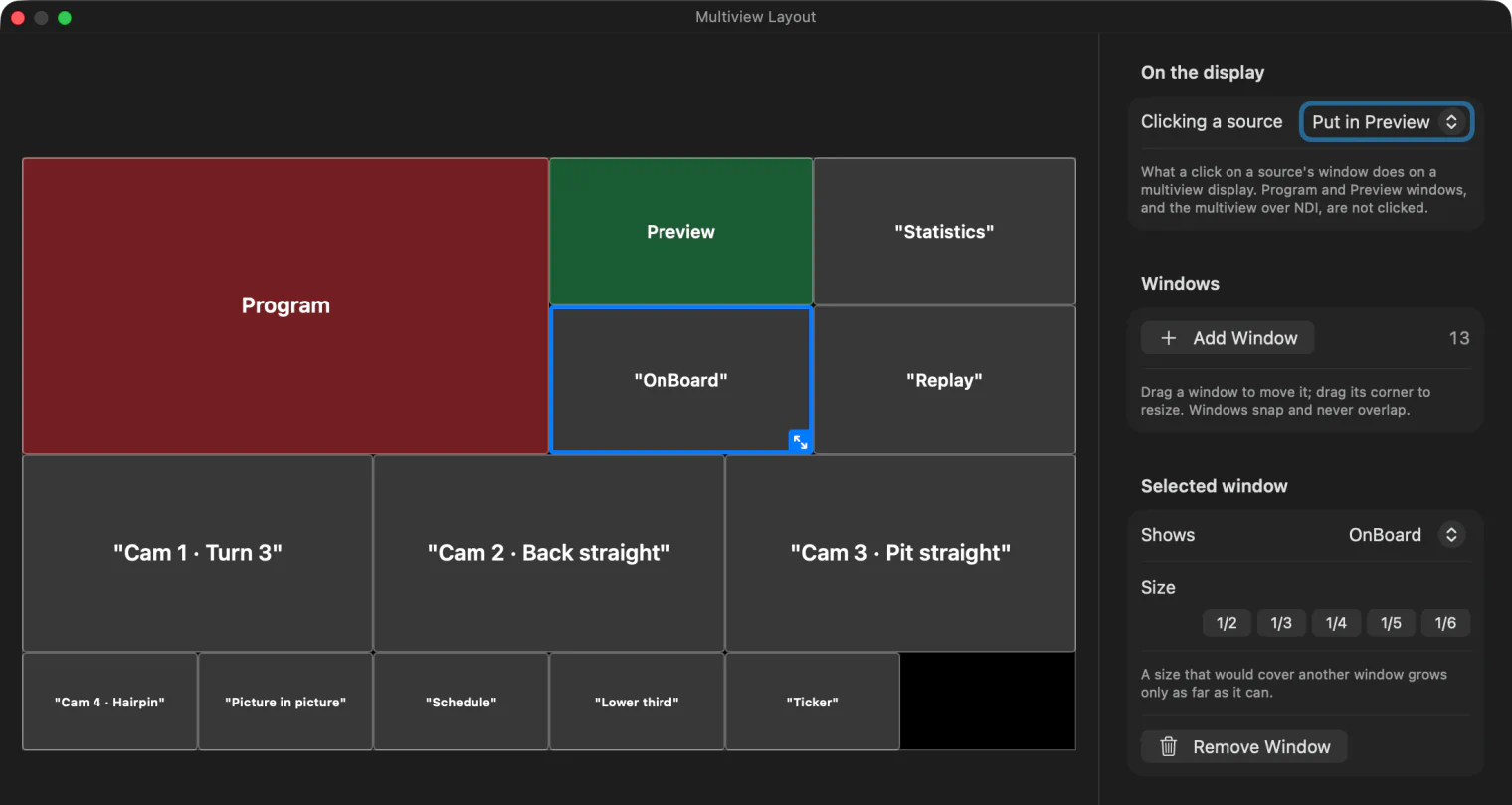
Choose Tools ▸ Multiview Layout…, or Edit Multiview Layout… in the External setup.
- Add Window puts a new window in the first free space. Drag it to move it and drag its corner to resize it. Windows snap into line with each other and never overlap, so every source is seen whole.
- The size buttons make the selected window a half, a third, a quarter, a fifth or a sixth of the width, for a neat grid without measuring.
- Under Selected window, Shows picks what it shows: Program, Preview, any source with a picture, or Nothing.
A display already showing the multiview changes as you edit, so you can build the wall while looking at it.
3. Start from a preset
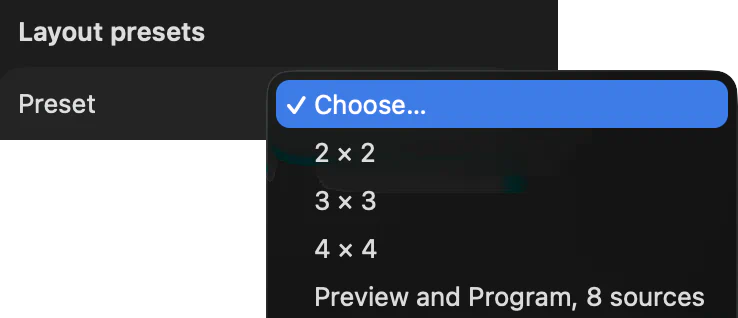
Layout presets come with the app, from a 2 × 2 grid to a large Preview and Program above eight sources. Load one and adjust it, or save your own layout under a name. A preset keeps the layout only, on this Mac, for every show; loading one keeps what your windows were showing, in reading order.
What each window tells you
Every window has its source’s name along the bottom and a tally border: red while it is on Program, green while it is in Preview. Put a Statistics input in a window too, and the wall also shows your stream destinations, the Mac’s load, disk space and the audio meters, so one glance covers the whole show.
Click a source on the wall
The mouse pointer shows on a multiview display, and hides itself when it stops. Under Clicking a source, at the top of the layout window, choose what a click on a source’s window does: put it in Preview, or Cut, Fade 1, Fade 2 or Dip it to Program. The window under the pointer is outlined, so you see which source you are about to take. A new Show starts at Do nothing, so nobody switches by accident.
Send it to another room
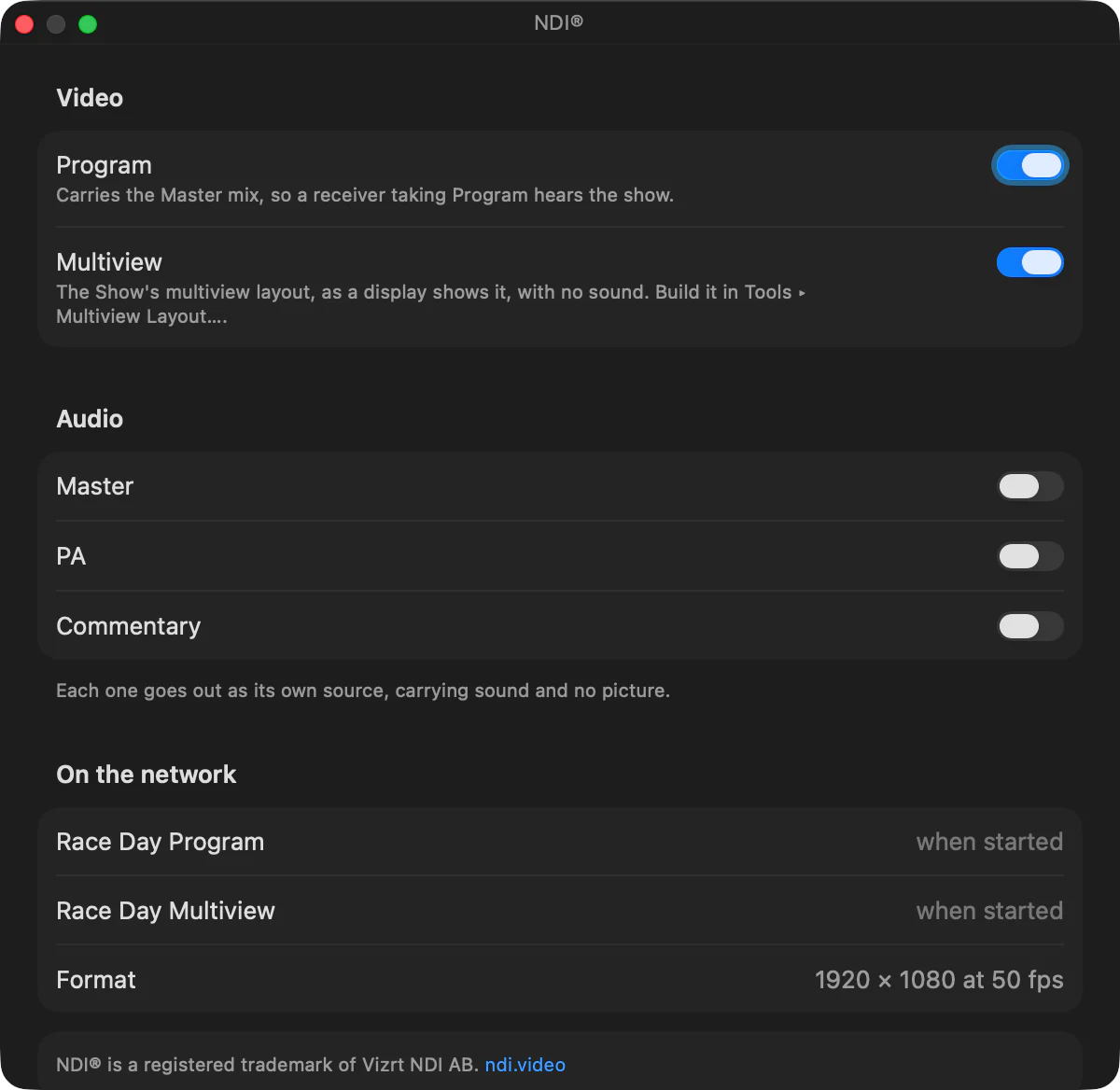
Tick Multiview in the NDI settings and the wall goes out as an NDI source of its own, at your show’s resolution and frame rate, without sound: for a director in another room, or a monitor fed by another computer, with no cable from this Mac.
The layout is saved with the show, and the sources it shows stay live even when you collapse their cards in the main window.