A remote camera over mobile data
Bring a phone or an encoder into your show from anywhere over 4G or 5G, with no open ports: InterDirector's own relay carries it to your Mac.
A camera at the finish line, a reporter in the street, a second venue across town: they are rarely on the venue’s network. A phone on mobile data, or an encoder with a 4G or 5G modem, can still send to InterDirector, through a relay server of ours on the internet. There is nothing to open on a router, no public address to find and no restreaming service to sign up for.
How it works
The phone sends to a relay server in the region you choose, Falkenstein or Nuremberg in Germany or Helsinki in Finland, and your Mac fetches the stream from it. The server starts only when you press Start, a session lasts 24 hours, and the relay passes the stream on without keeping any of it.
1. Get an address
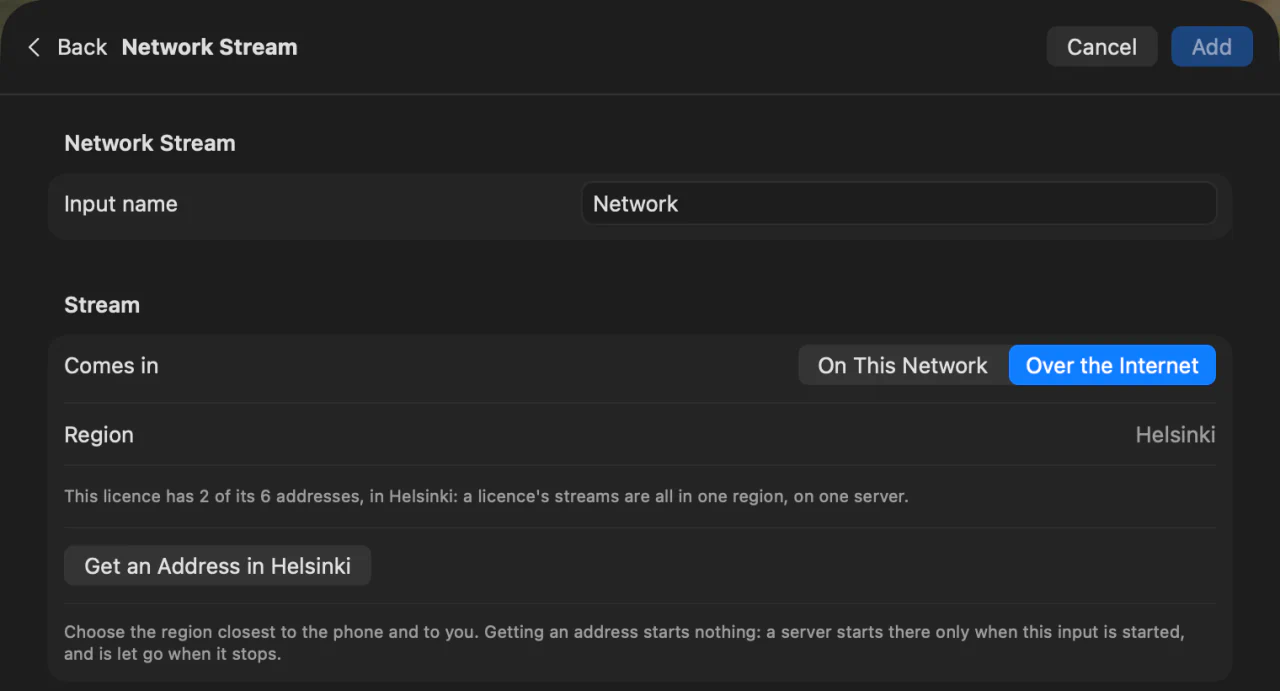
Press Add Input…, choose Network Stream, and set Comes in to Over the Internet. Choose the Region closest to the phone and to you, and press Get an Address in that region. This makes the input’s own address and starts nothing yet.
The address is saved with your Show and stays the same, so a phone can be set up the day before the show.
2. Set up the phone
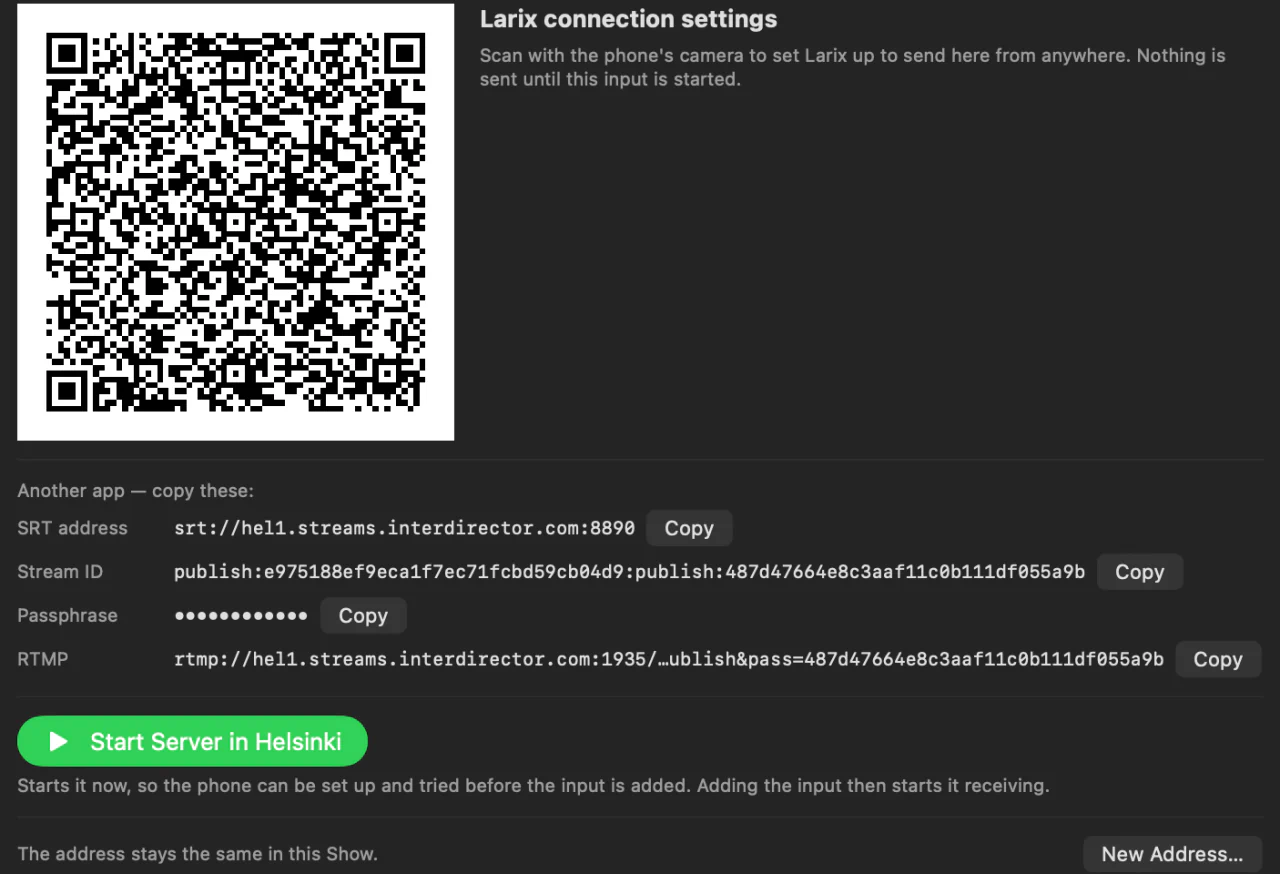
Press InterDirector Cam QR Code… in the input’s settings and scan it with InterDirector Cam’s Scan InterDirector’s QR Code button (Settings › Connection): the app takes the relay’s address, its passphrase, the Show’s format and tally in one go. Or press Larix QR Code… and scan it with the phone’s camera, and Larix Broadcaster adds the connection. In another app, copy the SRT address, its Stream ID and its Passphrase from the input’s settings. SRT is encrypted with the passphrase. An app without SRT can use the RTMP address, which is not encrypted.
3. Start receiving
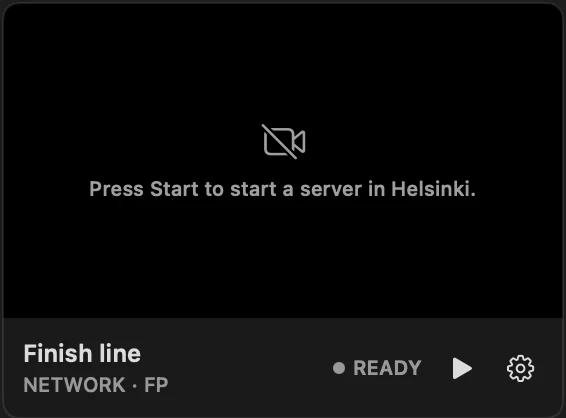
Press the green Start Server in button for your region, which takes about a minute, and then Add: the input is added running, and its card reads Waiting for a sender until the phone sends. Or press Add alone and Start on the card when you want to receive. Nothing starts by itself when the Show opens; until you start it, the card reads Ready.
4. Line it up with the rest
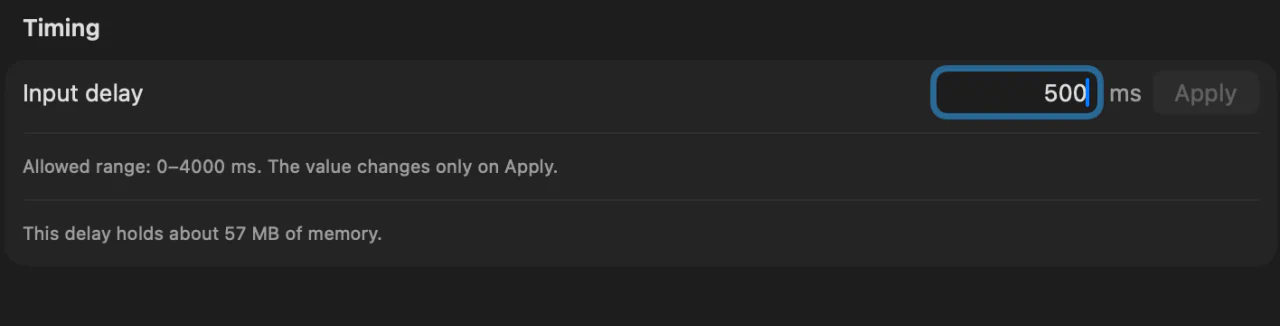
The relay adds the network’s delay twice, phone to server and server to Mac, so over mobile data expect the picture about two seconds behind the camera. Hold your other sources back with their Input delay, up to four seconds, so sound and picture still meet: Tools ▸ Sync Cameras and Audio… measures how far behind each one is and sets the delays for you (see Line up your cameras with the sound). SRT’s Latency is the margin for resending what the network lost: raise it if the picture stutters.
Good to know
- Six at once. A licence holds up to six addresses, all in one region, and receives on all six at the same time.
- Removing the input releases its address, so a phone set up for it can no longer send anywhere.
- The address carries its logins. Anyone with the Show file can send to it while it runs, so share the Show with care.