Switch NDI cameras on a Mac
Bring NDI cameras and computers into a show over your network, switch them with tally on the cameras themselves, and send Program back out as NDI.
NDI sends video and sound over an ordinary network, so a camera across the room, a laptop running slides or another production computer can reach your Mac without a capture card. InterDirector reads NDI natively: there is nothing extra to install for ordinary NDI sources.
What you need
- NDI sources on the same network as your Mac: NDI cameras, PTZ cameras, the NDI app on a phone, or software that sends NDI.
- A wired network for anything serious. A full-quality 1080p NDI source is more than 100 Mbit/s, so a handful of them fill a gigabit link. Use Ethernet, and a 2.5 or 10 gigabit adapter for many sources. Wi-Fi is for testing.
- NDI HX sources (many PTZ cameras and phone apps send this compressed form) also need the NDI HX driver from NDI installed on the Mac. InterDirector tells you if a source needs it and it is missing.
1. Add each source
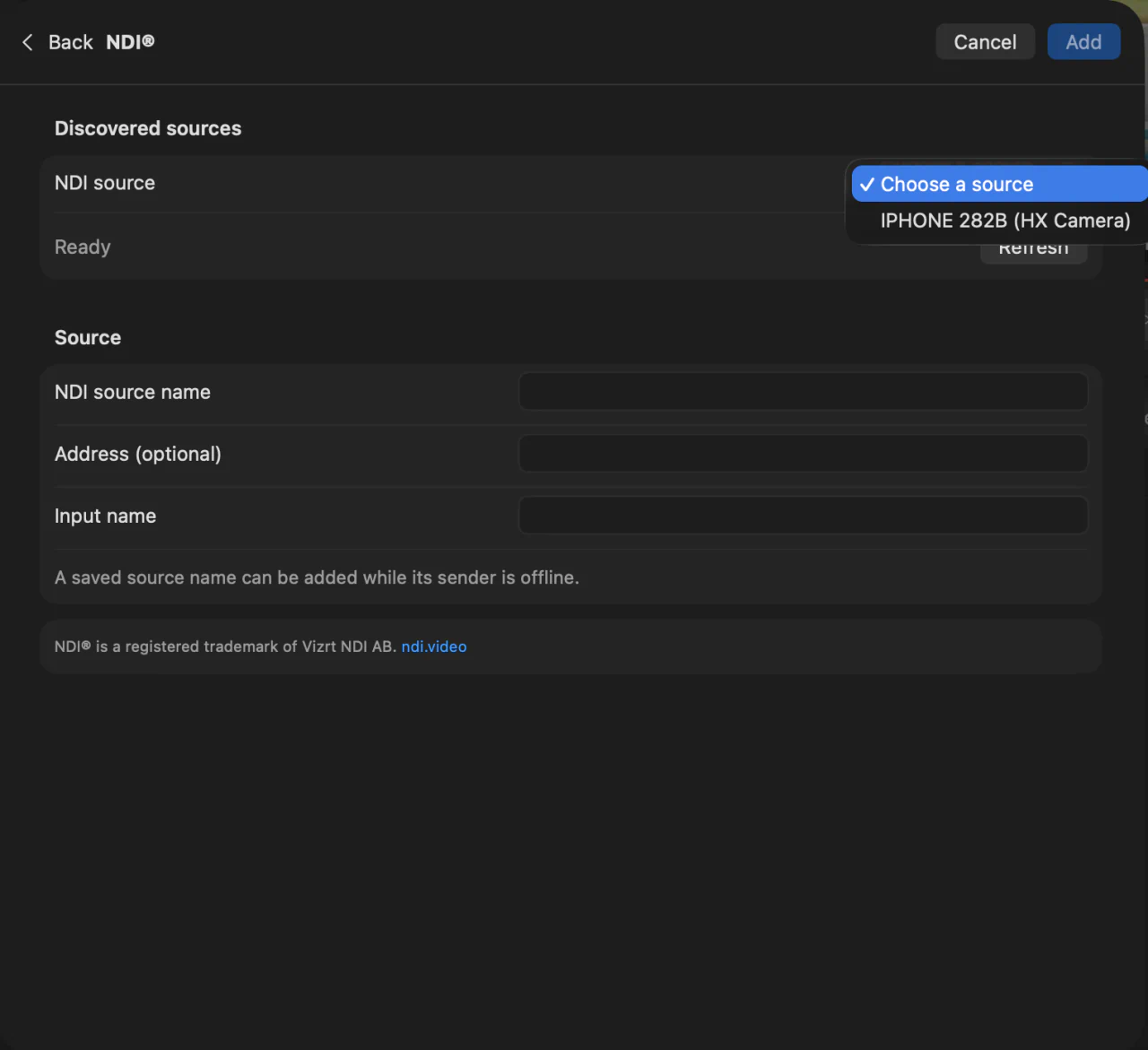
Press Add Input…, choose NDI, and pick the sender from Discovered source. Press Refresh if it has just started. If the sender is on another network segment, or your network blocks discovery (some venue and office networks do), add the sending machine’s IP address in Settings › NDI › Extra addresses and its sources are listed; or enter the sender’s NDI source name, and its Address if you have it, instead.
Choose what to take under Stream:
- Full, for a source that goes on air.
- Low bandwidth, the sender’s small preview stream, for a source you only need to watch, at a fraction of the network and processing.
- Audio only, for a source you only want to hear.
2. Switch them, with tally
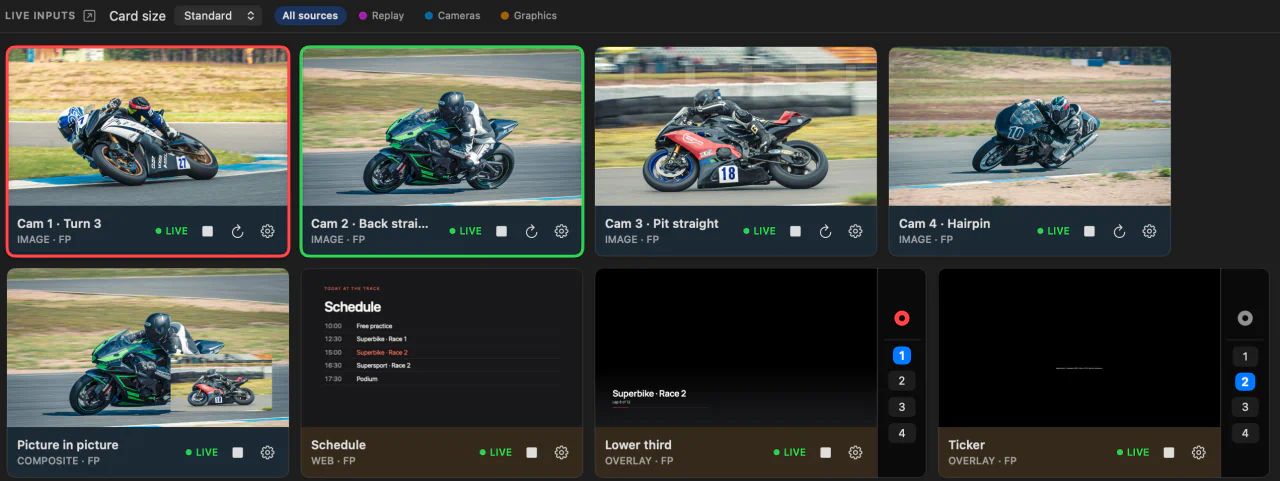
NDI cameras switch like any other input: click a card to put it in Preview, then CUT, Fade 1, Fade 2 or Dip to take it to Program. Or take a camera straight to Program from a key, a Stream Deck button or Bitfocus Companion, with Cut to Program or Fade to Program.
InterDirector also tells each NDI sender where it is. A camera or monitoring app that shows NDI tally (PTZ cameras with a tally light, the NDI app on a phone, NDI Studio Monitor) lights red while its source is on Program and green while it is in Preview, so the person behind the camera knows when they are live.
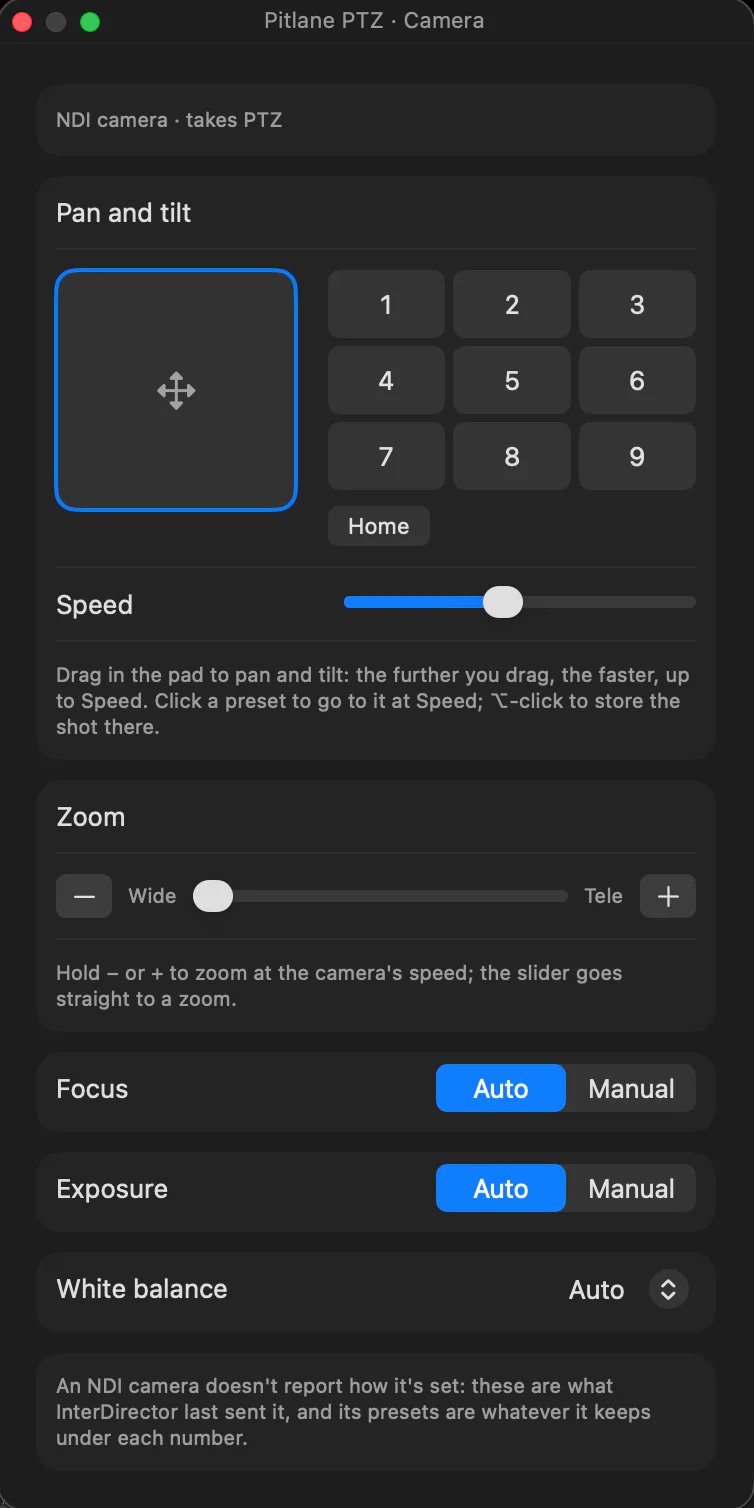
A PTZ camera can also be driven from where you sit. When its sender takes PTZ control, its card has a camera button that opens a Camera window: drag in its pad to pan and tilt, zoom, recall one of nine presets or store the shot you have, and set focus, exposure and white balance. A hotkey, a rule, a Stream Deck key or a Companion button can send a camera to a preset, so the next shot is framed before you cut to it, and the Stream Deck’s PTZ action moves it while the key is held. See Controlling an NDI camera.
3. Keep sound and picture together
An NDI source carries its own sound. Under Timing on the NDI settings, Sender’s clock keeps a source’s sound in step with its picture; Arrival is steadier when the sender’s clock drifts from the Mac’s. If one camera arrives later than the others, hold the rest back with Input delay on their Source tab, up to four seconds, or let Tools ▸ Sync Cameras and Audio… measure every camera against the microphone and set the delays: see Line up your cameras with the sound.
4. If a source drops
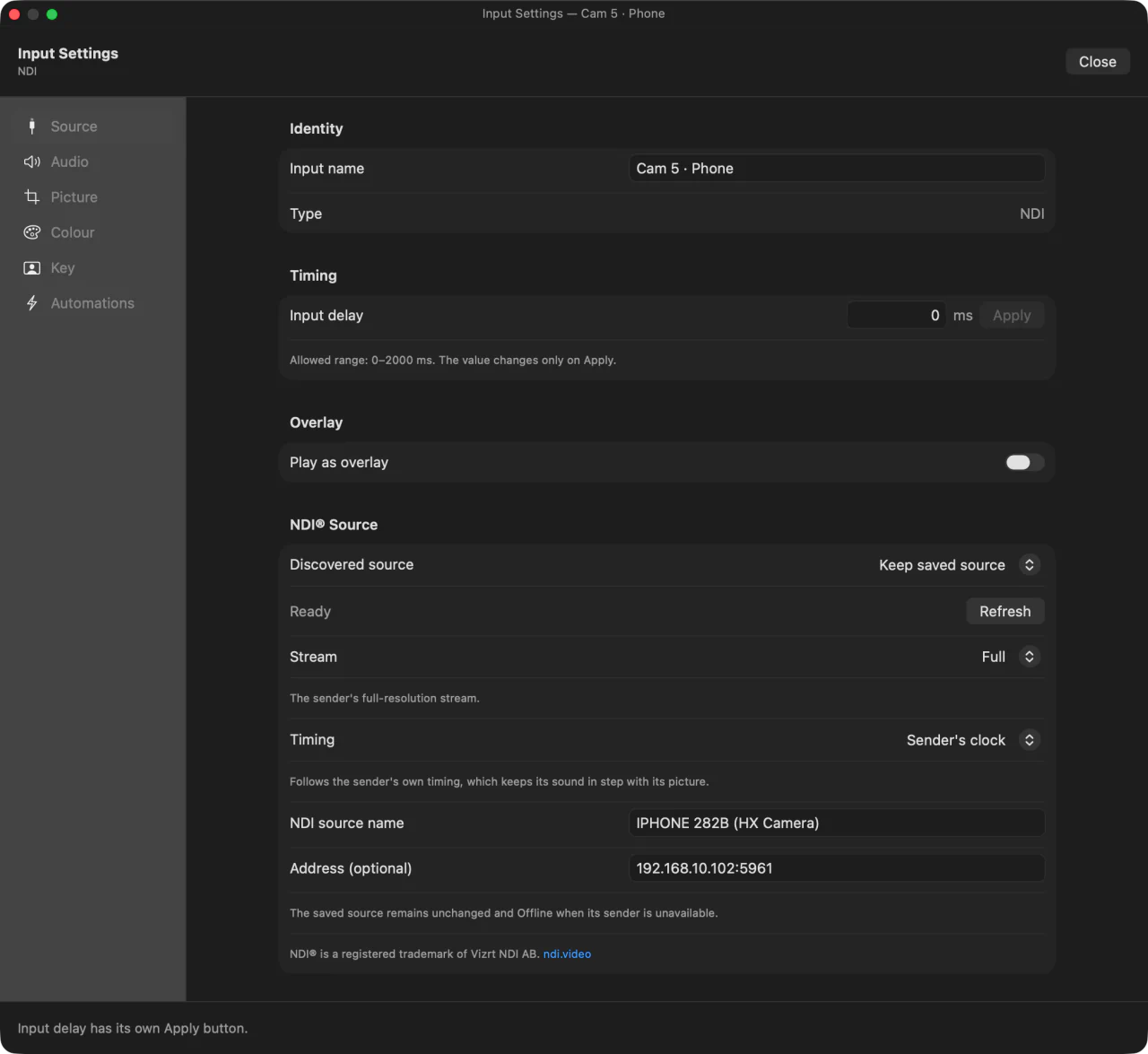
A source whose sender goes away shows Offline and stays in your show, configured as it was. InterDirector keeps trying, and it comes back on its own as soon as the sender does: nobody has to touch the Mac mid-show.
5. Send your show back out as NDI
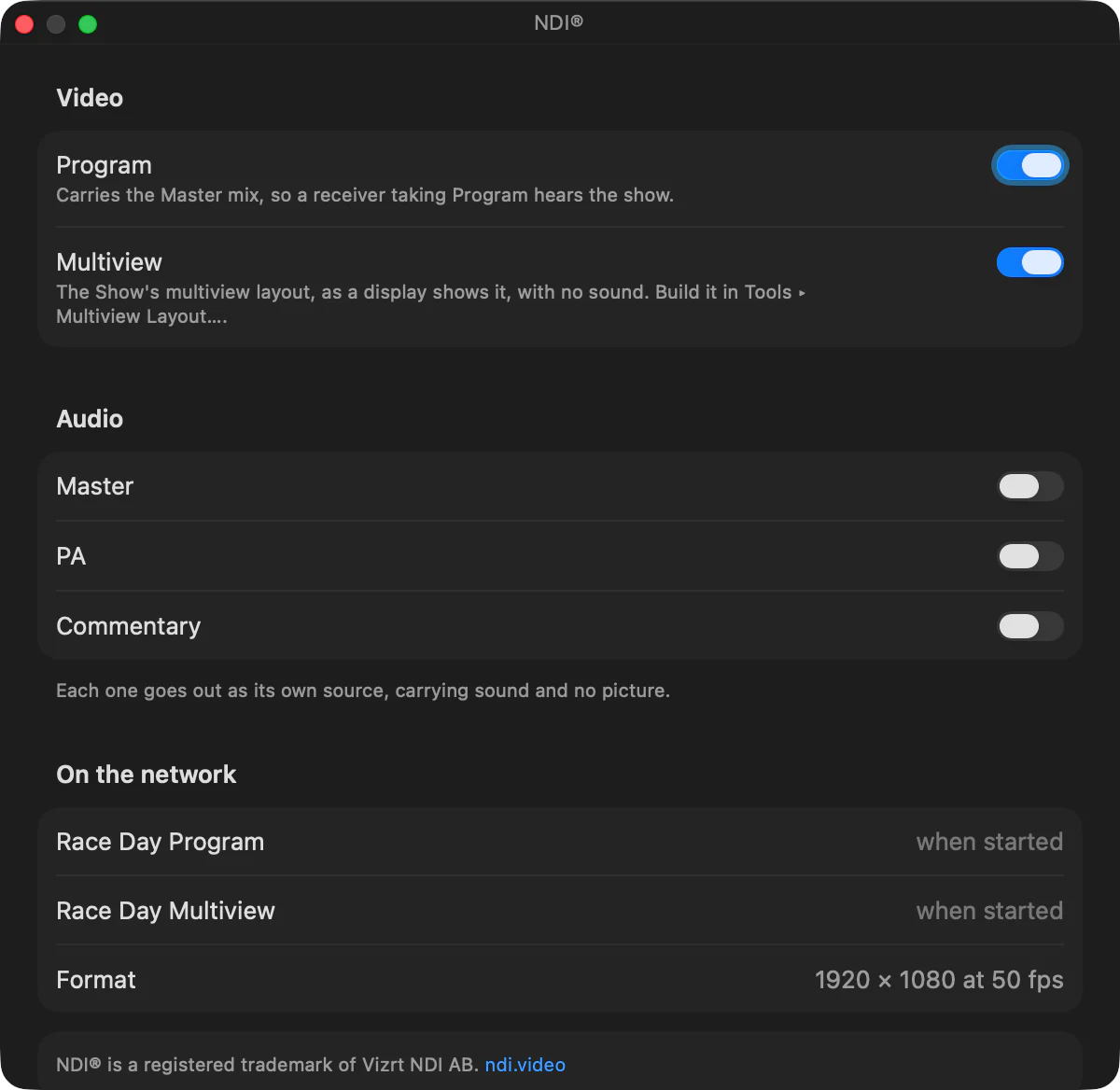
Press NDI to send Program out as an NDI source of its own, with your Master mix, at your show’s resolution and frame rate. Another computer can record it, a projector’s NDI receiver can show it, or a second production can take it as a camera. Master and each bus can go out as sound-only NDI sources too, and the multiview as a picture of its own, for a monitor in another room.
Record every NDI camera as it arrived
Arm the NDI inputs in Input Rec and each is written to its own file, at its own resolution, beside Program. See Record every camera to its own file.