Stream to YouTube, Facebook and Twitch at once
Two ways to reach several platforms at once: straight from your Mac, or one stream to InterDirector ReCast, which sends it on and keeps them live on a slate.
Straight from your Mac
- YouTube
- Twitch
- Kick
The venue’s upload 4 × 6 = 24 Mbit/s
Through InterDirector ReCast
- YouTube
- Twitch
- Kick
The venue’s upload 1 × 6 = 6 Mbit/s
If the venue’s connection drops, ReCast keeps every platform live on a slate, and your Program comes back by itself.
Sending one show to several platforms usually means paying a restreaming service, or running a second program. In InterDirector there are two ways, and you can choose for each show:
- Straight from your Mac. Each platform is a destination of its own, all going out at once, with no limit on how many. Nothing else is needed, but every platform is a stream of its own on the venue’s upload.
- Through InterDirector ReCast. InterDirector sends one stream to ReCast, a server of your own in the cloud, and ReCast sends it on to every platform. The venue’s upload carries one stream however many platforms you reach, and if it drops, your platforms stay live on a slate until your Program comes back.
Which way suits your show
Count the platforms, multiply by the stream’s bitrate, and compare that with what the venue’s connection can really send, with room to spare. If it fits easily and the connection is one you trust, stream straight from your Mac. If it does not, if you would rather send one stream at a higher quality than several at a lower one, or if the show must not stop when the network does, use ReCast.
| Straight from your Mac | Through ReCast | |
|---|---|---|
| The venue’s upload | One stream for every platform | One stream, however many platforms |
| If the venue’s connection drops | The platforms lose the stream | The platforms show a slate, and your Program comes back by itself |
| Where you set the platforms | InterDirector’s streaming settings | InterDirector’s streaming settings, or ReCast’s own page |
| A portrait version, for Instagram, TikTok or YouTube | Yes, as a destination with its own encoding: one more stream from the venue | Yes, from the same stream |
| What it needs | Nothing more | ReCast hours, bought ahead |
Straight from your Mac
1. Add a destination for each platform
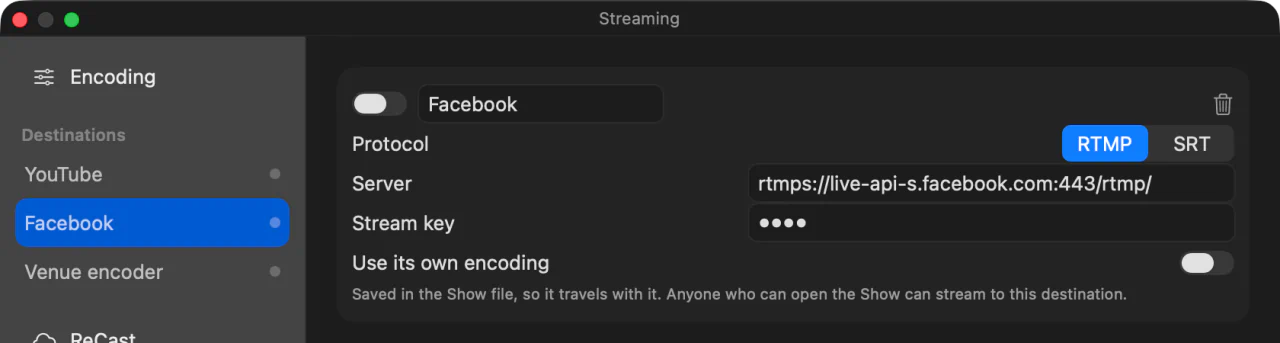
Press the gear beside Stream to open the streaming settings, then Add Destination once for each platform. For each one:
- Give it a Name, such as “YouTube”, so you can tell them apart while you are live.
- Choose its Protocol: RTMP (which covers RTMPS) or SRT.
- For RTMP, paste the Server address and the Stream key from the platform’s live-streaming page. An address
starting
rtmps://is sent encrypted. - For SRT, paste the
srt://address into Server, and fill in the Stream ID, Passphrase and Latency if your server uses them.
Enabled decides whether a destination goes out when you press Stream, so you can keep a platform set up and leave it off for a show.
2. One encode, or one each
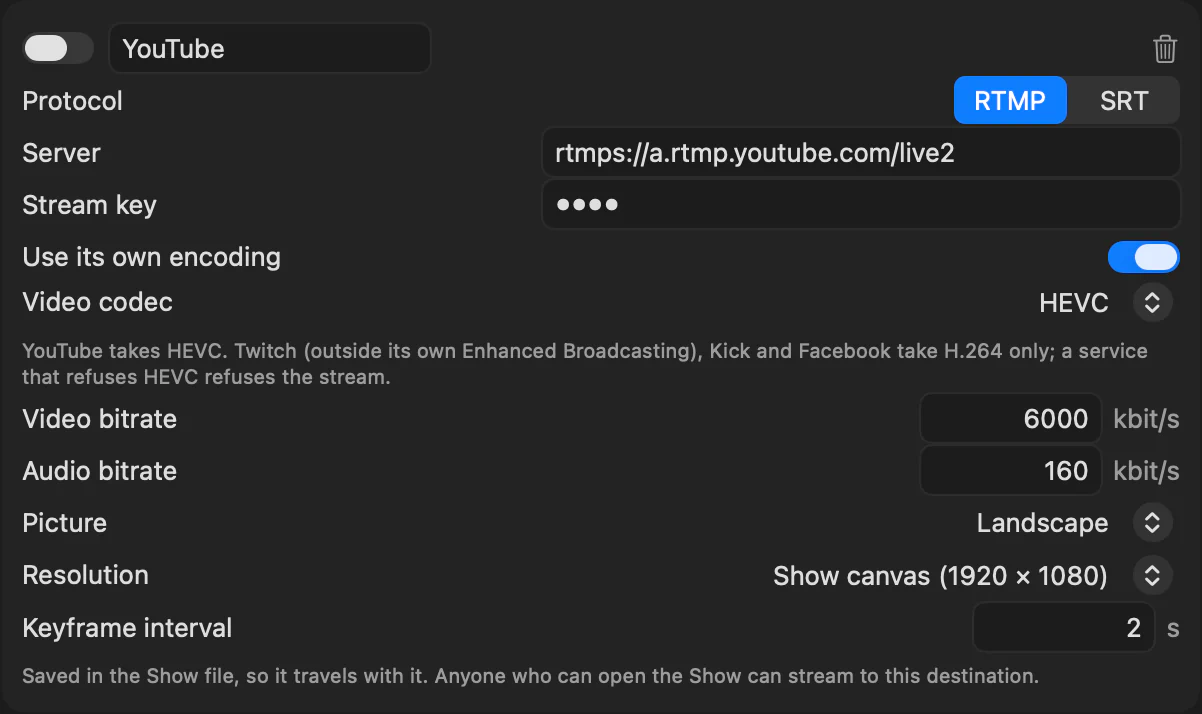
By default every destination shares the stream’s Encoding settings (codec, bitrates, resolution and keyframe interval), so the show is encoded once however many platforms it goes to. That is the lightest on the Mac, but not on the venue’s connection: each destination is still a stream of its own, so four platforms at 6 Mbit/s need 24 Mbit/s of upload.
If a platform wants something different, another codec, a lower resolution, a smaller bitrate or another keyframe interval, switch on Use its own encoding for that destination. It then gets an encoder of its own, and its bitrate adapts to its own connection without softening the others.
H.264 or HEVC. The stream is H.264 unless you choose HEVC as its Video codec. HEVC gives a better picture at the same bitrate, but not every platform takes it: YouTube does; Twitch, Kick and Facebook take H.264 only. To send HEVC to YouTube and H.264 to the rest, give YouTube its own encoding and choose HEVC there. See H.264 or HEVC.
3. Go live
Press Stream: every enabled destination starts together, and the button reads Streaming. Each destination looks after itself. If one connection struggles, its bitrate comes down and goes back up when it can; if one drops, it reconnects, and the others carry on unaffected. While anything is not at full strength, the Stream button turns amber; hover over it for the reason.
A destination can also be switched on or off on its own while you are live, from a keyboard shortcut or a Stream Deck button, for a platform that should join late or leave early. Stopping the stream always asks first.
Through InterDirector ReCast
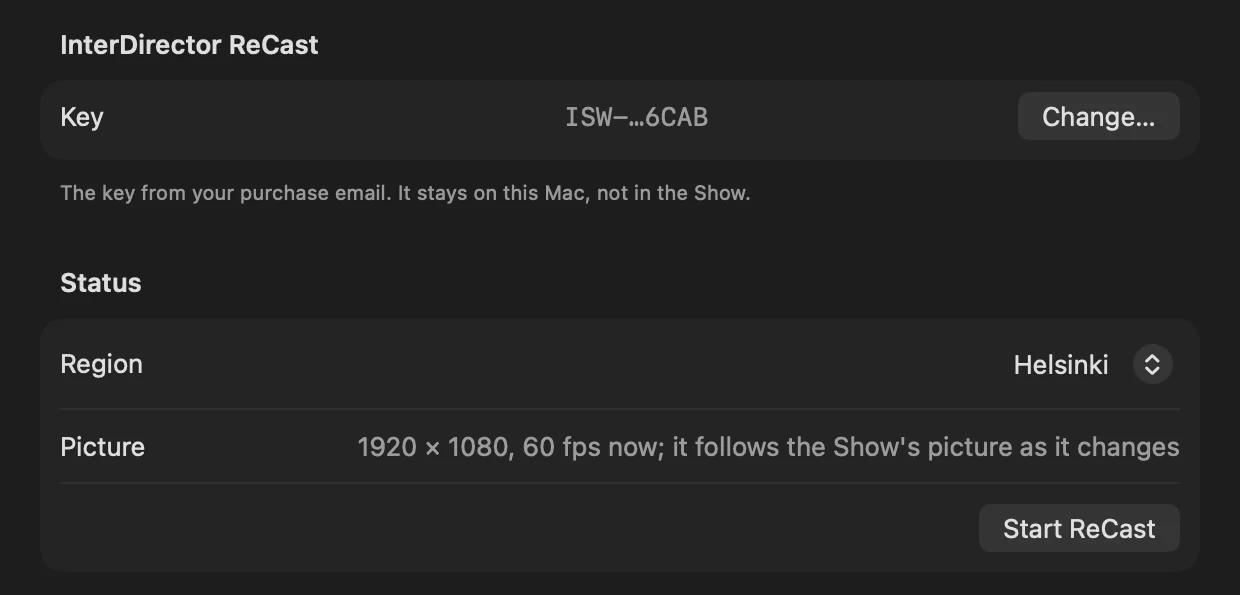
ReCast runs for the hours you buy: 24 hours, 48 hours or a week, counted from the moment the key first starts it, so you can buy them ahead of the show. Your key arrives by email.
1. Start ReCast
Choose Tools ▸ ReCast…, or ReCast in the streaming settings’ list. Paste your key and press Use Key, choose the region nearest to you and your audience, and press Start ReCast. It is ready in about a minute and a half, and it makes its picture in your Show’s size and frame rate.
2. Turn your other destinations off
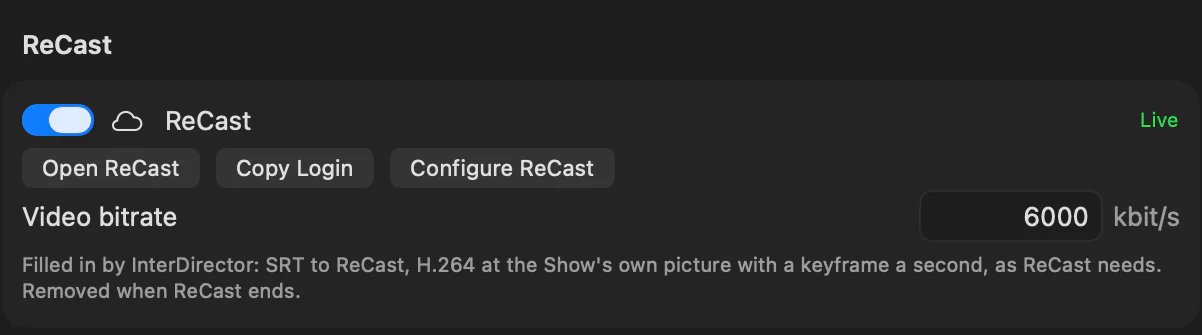
When ReCast is ready, it is in the streaming settings as a destination called ReCast, already on. Turn off the destinations it now sends to, or your platforms receive the show twice. Its Video bitrate is the one stream that leaves the venue, and ReCast passes it on as it is, in H.264, which every platform takes. With one stream to carry instead of four, the venue’s upload can give it the full bitrate your platforms accept, not what is left after sharing it out.
3. Add your platforms
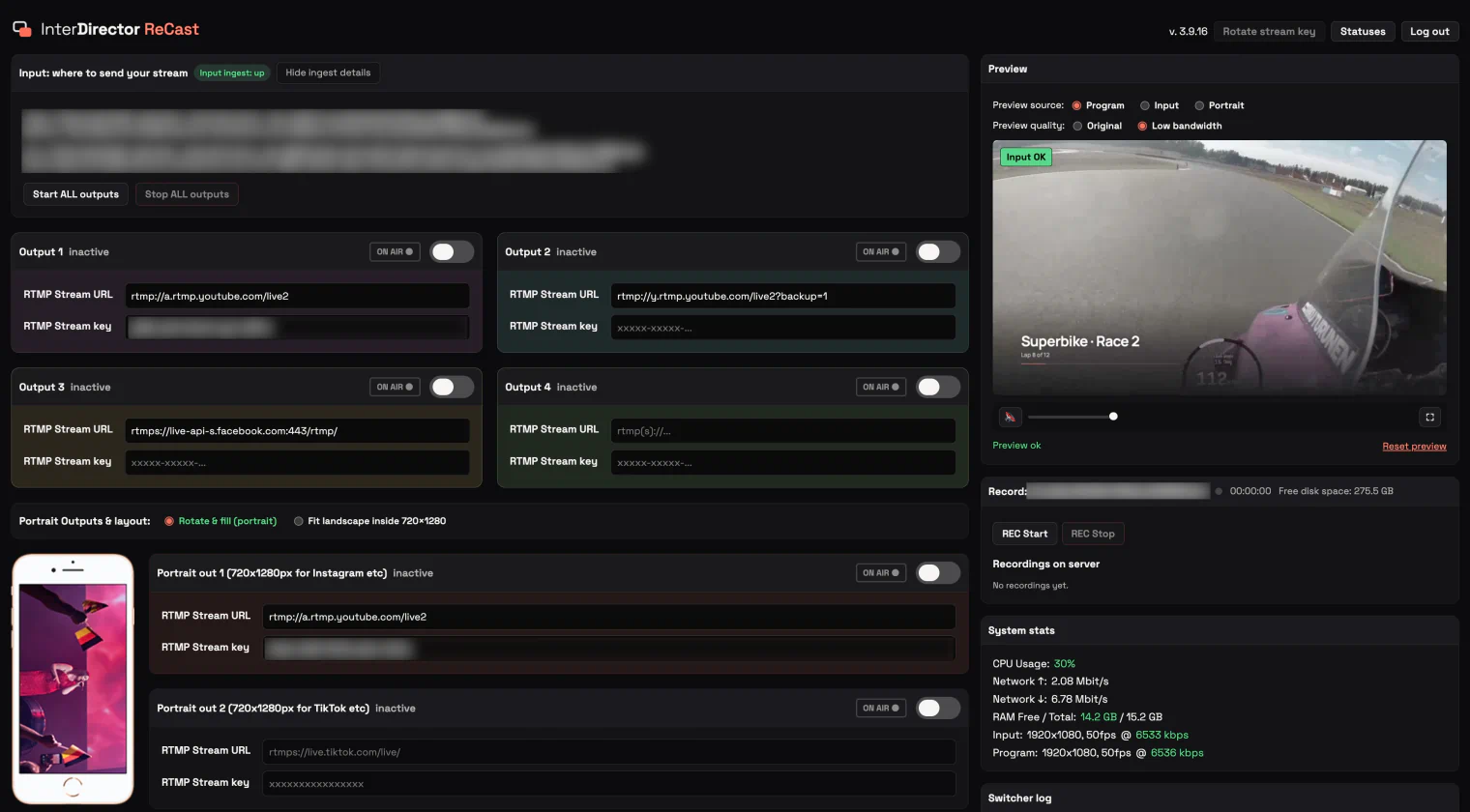
On ReCast’s page in the streaming settings, paste each platform’s address and stream key into one of its outputs and switch it on: up to four platforms. Two more outputs send a portrait version, 720 × 1280, to Instagram Live, TikTok or YouTube, from the same stream: either your picture turned a quarter turn to fill it, for a show you make on its side, or the whole landscape picture fitted inside it. Your platforms are saved in the Show and given to the next ReCast you start.
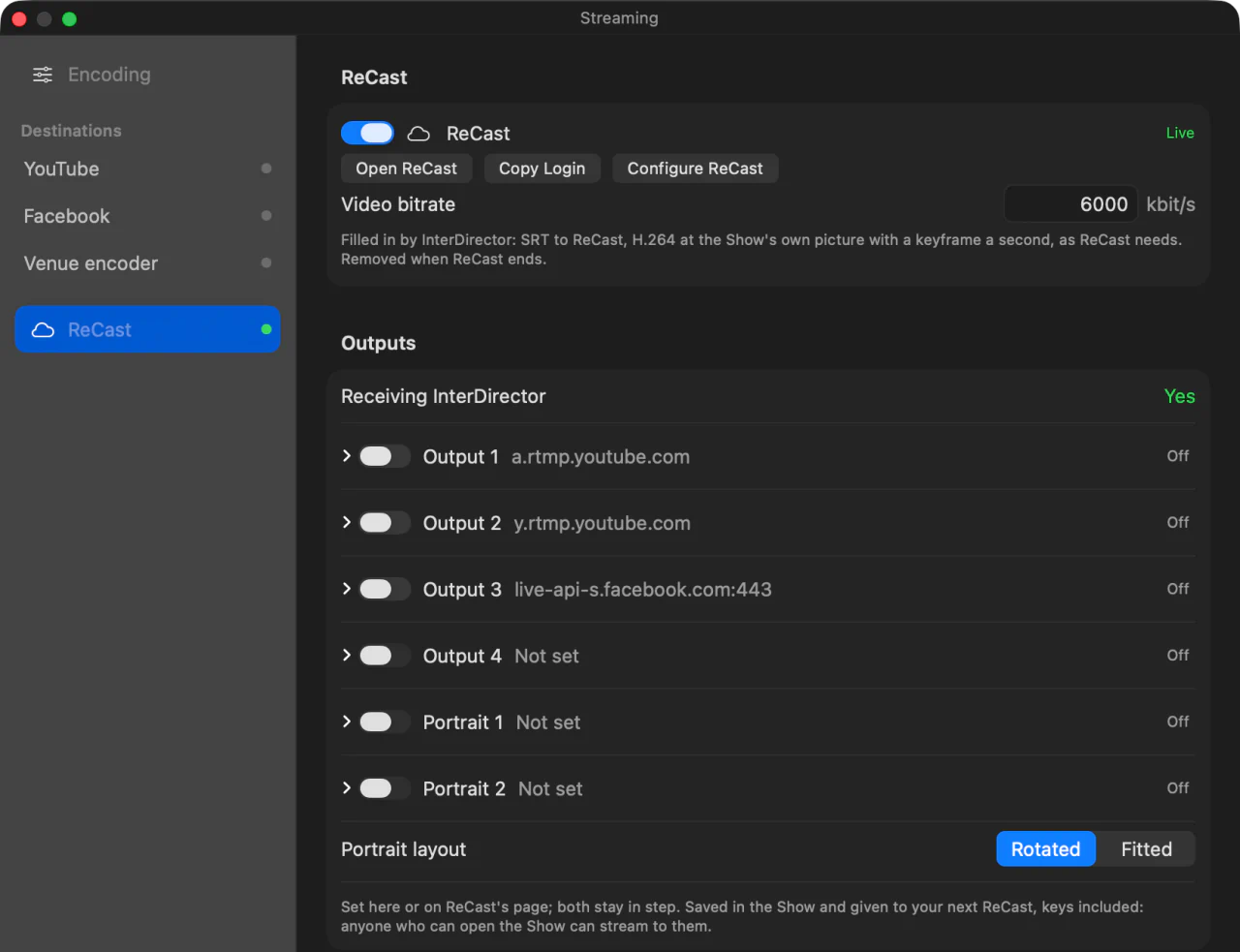
Or press Open ReCast: its own page opens in your browser, already signed in, with the same outputs, and a preview of what goes out, including the slate your viewers would see if the venue’s connection dropped. Copy Login gives a colleague the page’s login, to look after the platforms while you direct.
4. Go live
Press Stream, as for any destination. If the venue’s upload dies, ReCast cuts to its slate on every platform, and back to your Program the moment InterDirector reconnects, which it does by itself. When you are finished, End… in the ReCast window stops it; download any recording you made on its page first, as they go with it.
Keep an eye on them
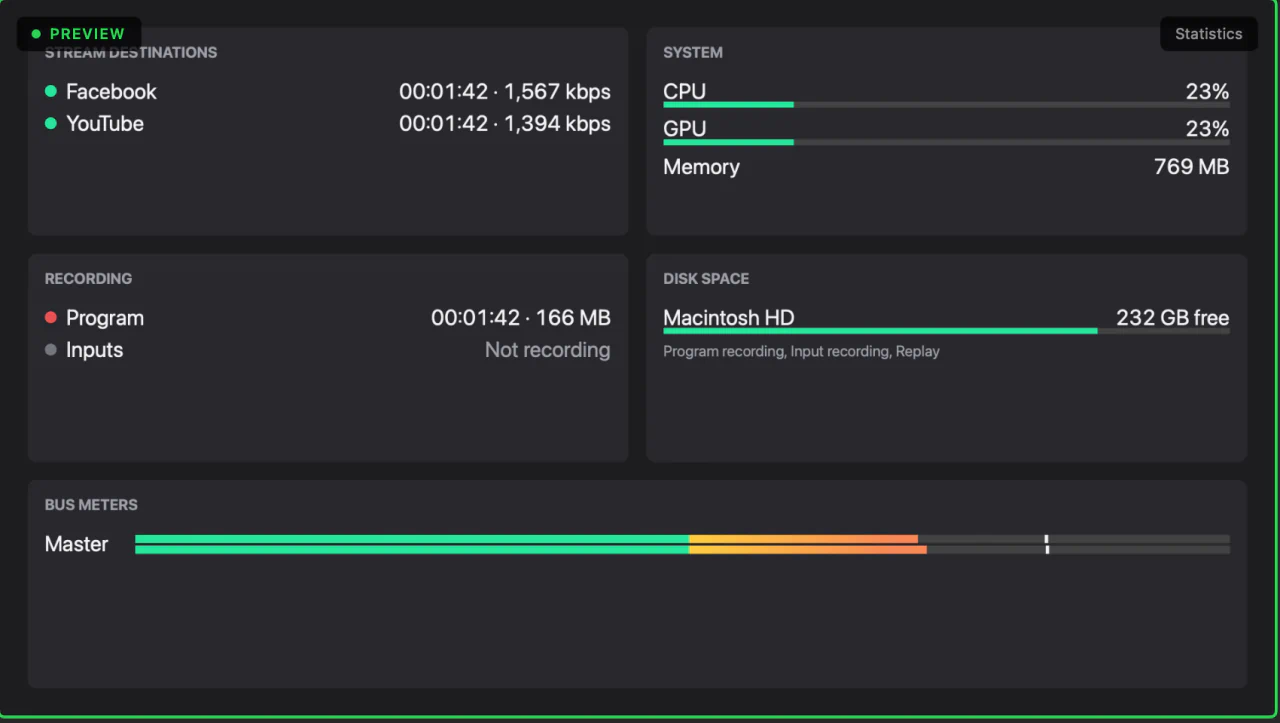
A Statistics input shows every destination with its status and what it is sending, beside your Mac’s load and disk space. Put it in the multiview, on a second display, and you can watch the whole stream without opening a window. Through ReCast, it shows the one stream to ReCast; each platform’s status is on ReCast’s page.
Record a copy as well
Press Record for a file of the show on your Mac, with its own resolution and bitrate. If the internet drops during the show, the recording does not.