Moving live production from Windows to the Mac
Moving a live production setup from a Windows PC to a Mac: what carries over, from cameras and capture cards to habits, and what to check first.
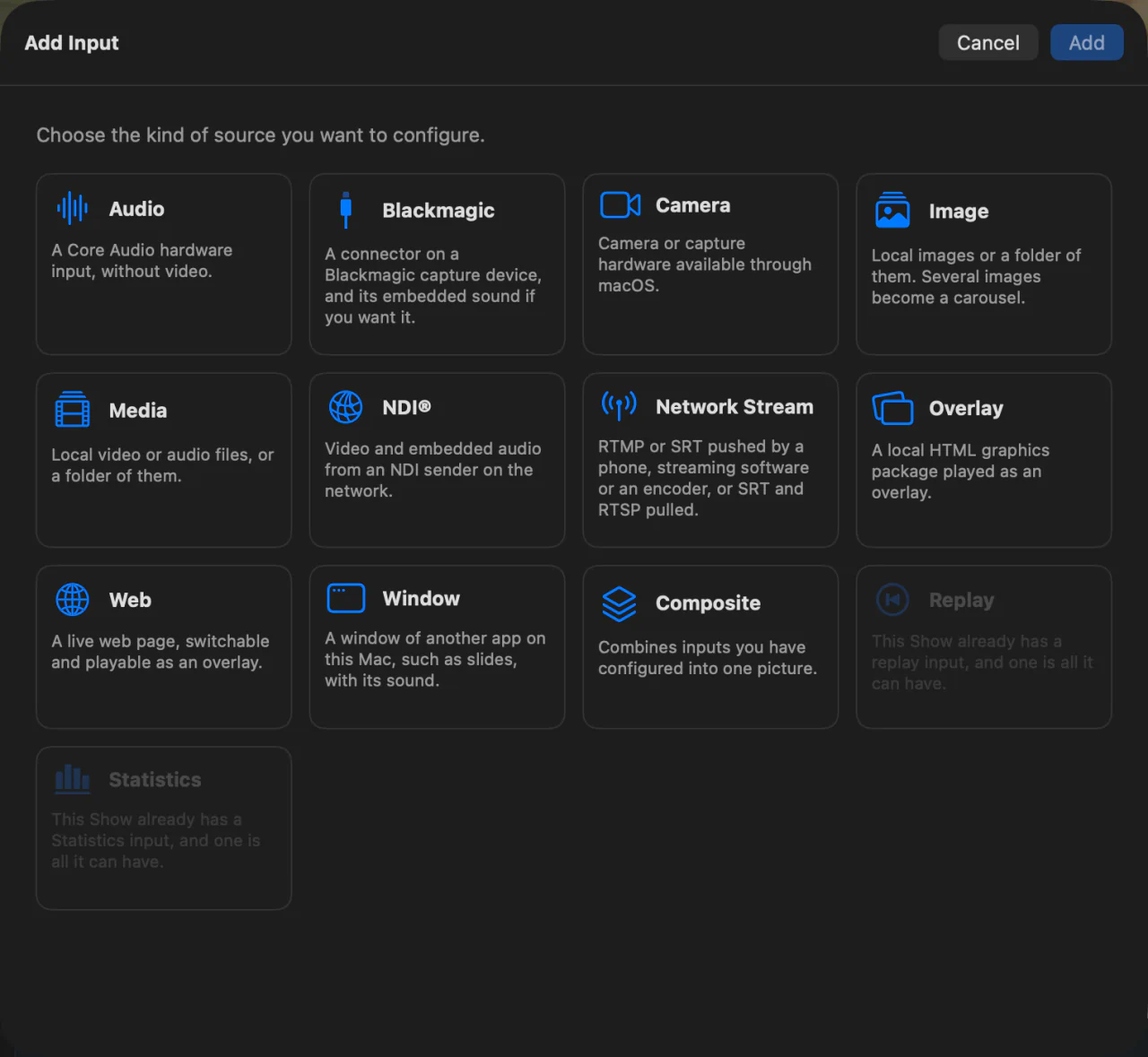
I have worked in live streaming for more than ten years. When I moved from Windows to the Mac, I couldn’t find the live production software I needed there, so I built InterDirector. This guide is what I would have wanted to know before moving: what comes with you, what changes, and what to check before the first show.
The Mac you need
An Apple Silicon Mac (any M-series chip) on macOS 15 or later. Intel Macs are not supported. Recording or replaying in ProRes needs an M1 Pro, M1 Max or any later Mac; everything else runs on any Apple Silicon Mac. How many cameras and recordings a show can carry depends on the Mac, so try your real show on it before the day.
Your hardware comes with you
- Blackmagic capture cards and boxes work through Blackmagic’s own Desktop Video software for macOS, installed from Blackmagic, with the sound embedded in the signal if you want it.
- USB capture devices and webcams that appear to the Mac as a camera, such as a Cam Link, need no driver at all.
- NDI cameras and computers work over the same network as before. NDI HX sources also need the NDI HX driver for macOS.
- Phones and encoders sending RTMP or SRT can send to the Mac directly, and RTSP and SRT cameras can be pulled.
- Audio interfaces that macOS sees work as audio inputs, and Master and your buses go out to the outputs you choose.
- A Stream Deck works with the plug-in that installs with InterDirector, with keys that show state, and Bitfocus Companion has a module for InterDirector, from this Mac or another machine.
- Your own scripts and panels can drive the show through InterDirector’s documented control API, over a WebSocket or plain HTTP, so tools you built around your old setup can be pointed at it. See Run your show from your own software.
Your habits come with you
The shape of a show is the one you know: every source is an input on a card, you load the next shot into Preview, and take it to Program with a cut, a fade, a dip or the T-bar, or send a camera straight to Program from a key or a Stream Deck button. Overlays sit on layers above Program and stay up while you switch. Hotkeys, a multiview on a second display, streaming to several platforms, recording each camera and instant replay are all there. A whole setup saves as one Show file.
What changes
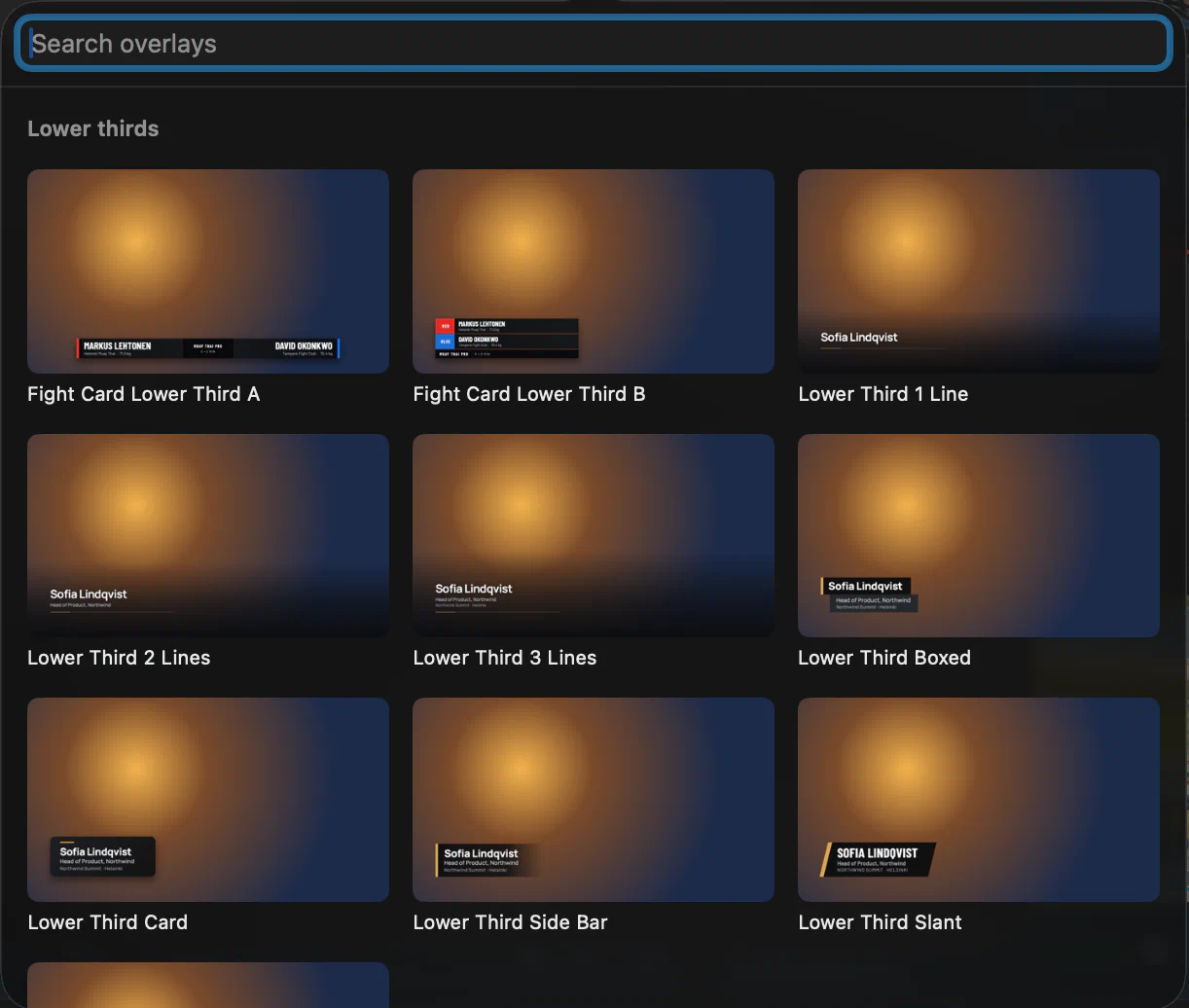
- Graphics are HTML. An overlay is an HTML package with a few controls you edit live. Twenty-five come with the app, lower thirds, a ticker and credits among them, and you can build your own, but title designs from another application do not carry over: they need making again.
- Effects are VST3, built for Apple Silicon. Windows plug-ins do not run on a Mac; most makers offer a Mac VST3 version. Effects only: instruments are not supported.
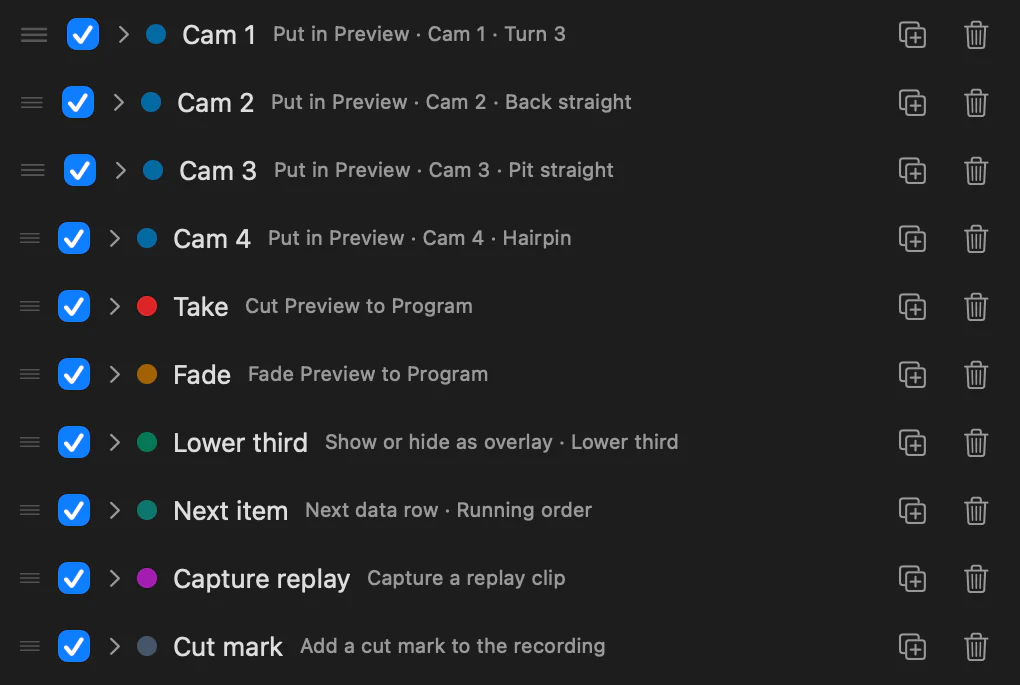
- Shortcuts are learned, not imported. Press the key or the Stream Deck button you want, and choose its action.
What you will not find
To be straight about it: InterDirector does not take guest video calls, and replays from Program rather than from each camera separately. It controls PTZ cameras that speak NDI, but not over VISCA or a serial cable. If a show depends on one of those, plan it before you move.
It can go the other way round, though: InterDirector has a camera and a microphone of its own that Zoom, Teams or Meet can use, so your show can be what the call sees and hears. See Your live show as a camera in Zoom, Teams or Meet.
Before the first show
- Install InterDirector, Desktop Video if you use Blackmagic, and the NDI HX driver if you use NDI HX.
- Build the show: Stream a multi-camera show from a Mac walks through it.
- Run it for as long as a real show, streaming and recording, on the Mac and the disk you will use.