Use your phone as a wireless camera
Send a phone's camera to your Mac over Wi-Fi or the internet with RTMP or SRT, and switch it like any other camera in the show.
A phone makes a good roaming camera: on a gimbal in the crowd, at a second location, or in a guest’s hand. Any phone app that can stream over RTMP or SRT can send its picture straight to InterDirector, with no cable and no restreaming service in between.
What you need
- A streaming app on the phone that can send to a custom RTMP or SRT address (see below for two).
- A network both can reach. On the same Wi-Fi as the Mac is simplest. A phone on mobile data, anywhere, sends through InterDirector’s own relay instead, with nothing to open on a router: see From anywhere, over mobile data below.
Which app
- InterDirector Cam, InterDirector’s own app for iPhone, sends SRT and RTMP. One scan of the input’s QR code sets it up, and it shows tally and takes control of its camera from InterDirector.
- Larix Broadcaster, for iPhone and Android, sends RTMP and SRT too.
- NDI Camera, NDI’s own app for iPhone and Android, sends NDI instead, and shows tally on the phone’s screen. See Or over NDI below.
- Any other app that can stream to a custom RTMP or SRT address works the same way.
1. Add a Network Stream input
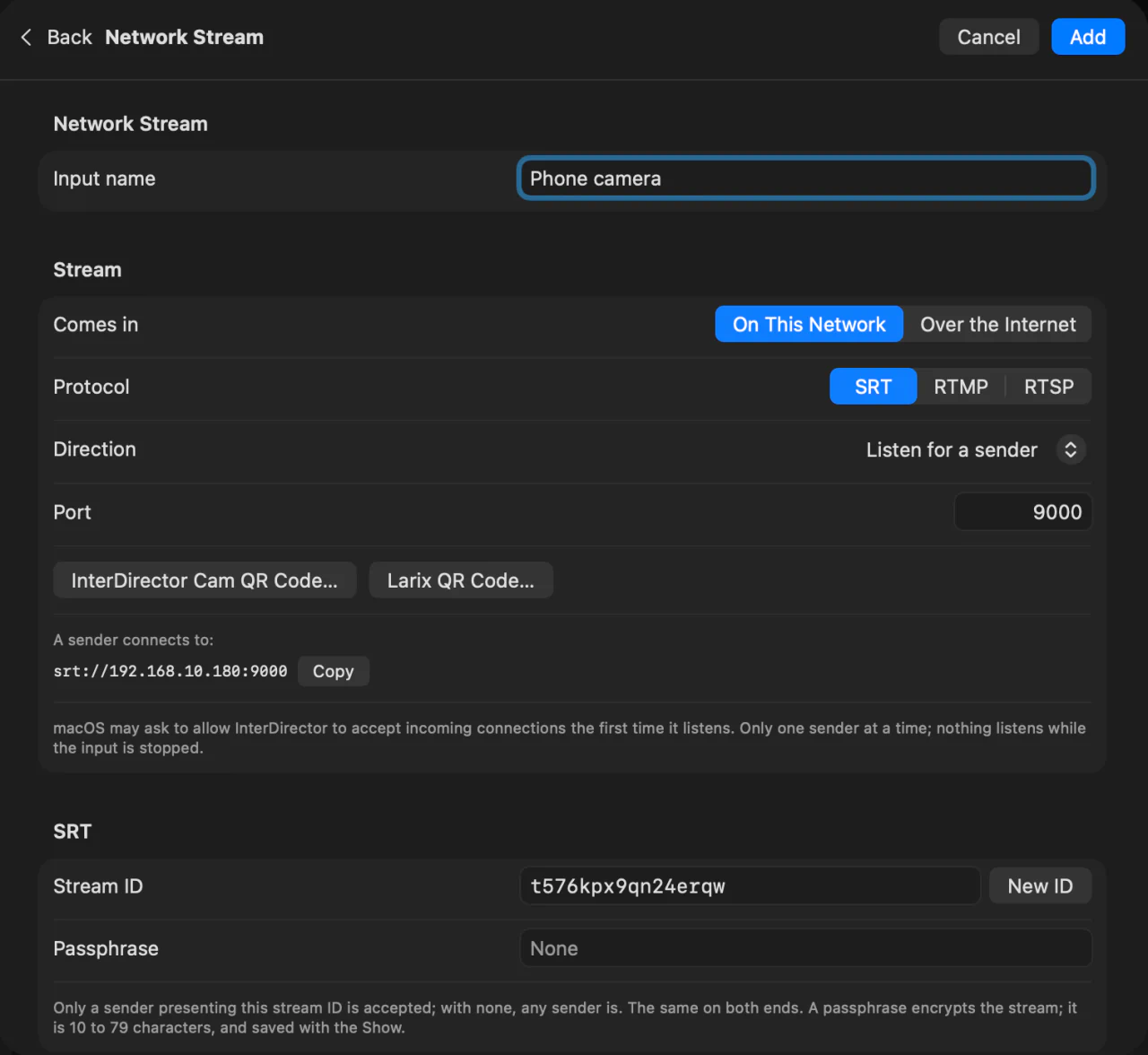
Press Add Input…, choose Network Stream, give it a name, and pick a Protocol:
- SRT, which a new input starts as, with Direction set to Listen for a sender. Better than RTMP on a network that loses packets, such as busy venue Wi-Fi or mobile data, because it resends what was lost. The input makes its own Stream ID, and takes only a sender presenting it.
- RTMP, which nearly every streaming app can send. The input makes its own Stream key, and takes only a sender using it.
The settings list the address to give the phone, one for each network the Mac is on, with Copy beside each, and a QR code for each phone app. The first time, macOS asks whether InterDirector may accept incoming connections: allow it.
2. Point the phone at it
With InterDirector Cam, press InterDirector Cam QR Code… in the input’s settings, and the code opens in a window of its own. Add the input.
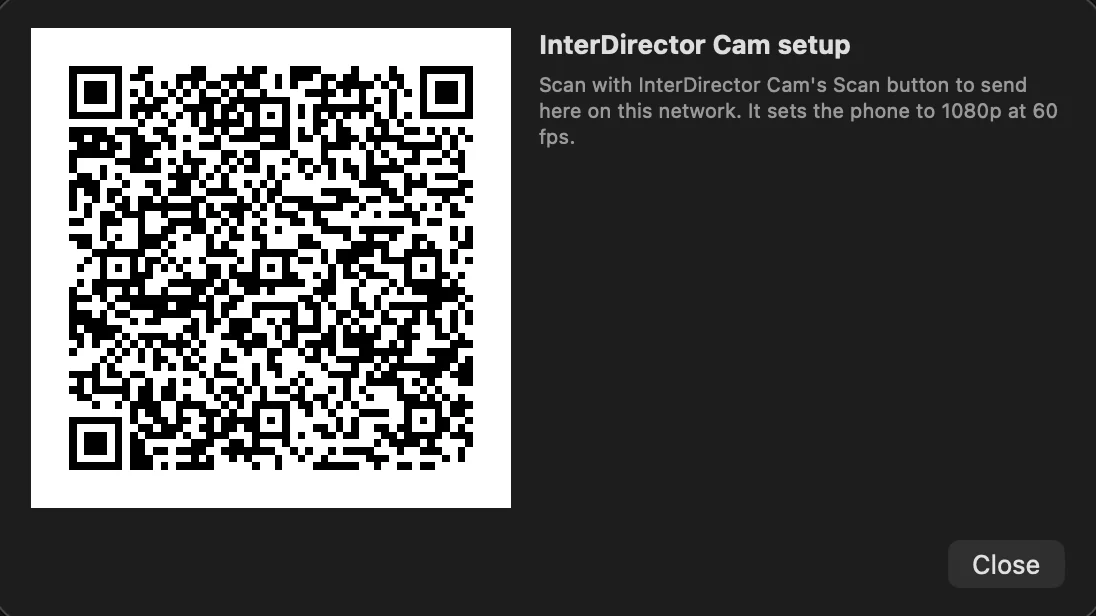
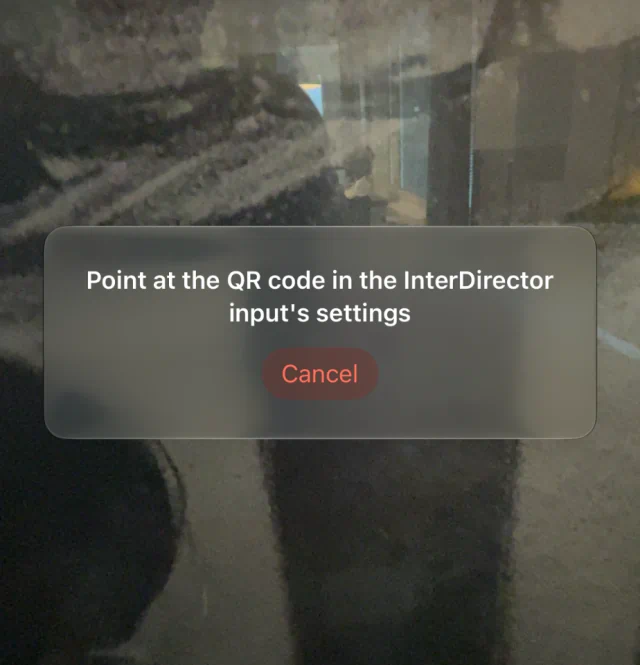
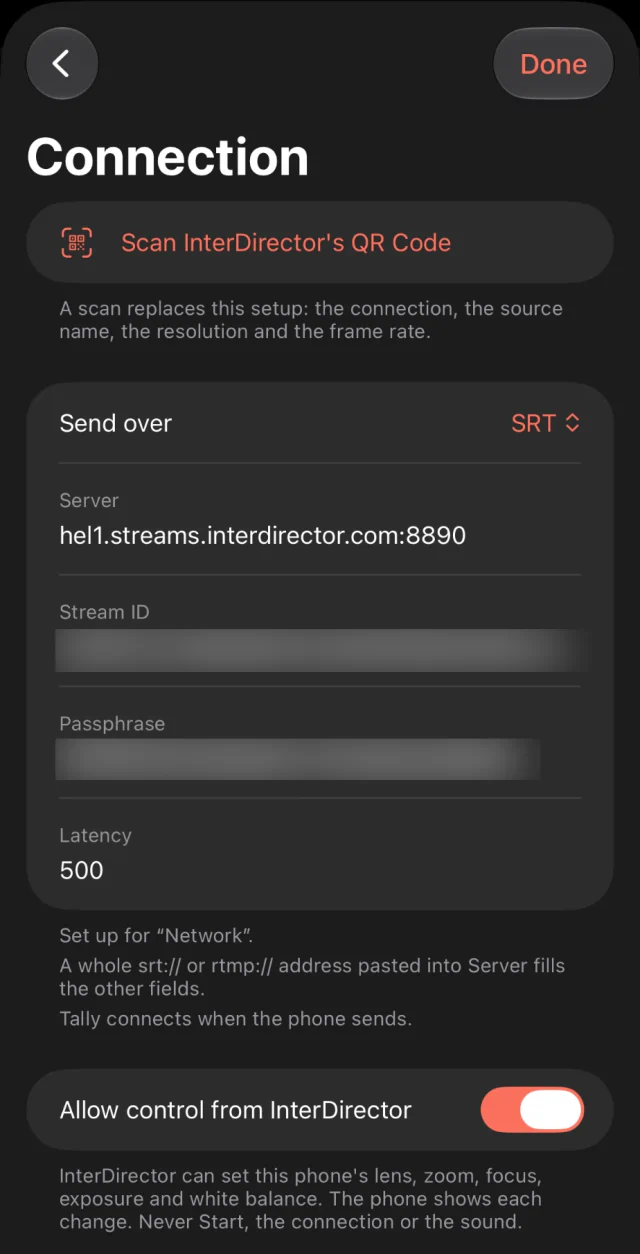
On the phone, tap the gear at the bottom of the rail, choose Connection, and tap Scan InterDirector’s QR Code, then point the phone at the code.
The phone asks whether to use the input’s setup: tap Use This Setup. It takes the connection, the Show’s resolution and frame rate, and tally, in one go, and its Connection page shows what it was set up for. Tap Done and press Start, the coral button at the bottom: the card changes from Waiting for a sender to the phone’s live picture. See Getting started with InterDirector Cam for the rest.
With Larix Broadcaster, press Larix QR Code… instead and scan it with the phone’s camera: Larix adds the
connection. In another app, enter the address from the input’s settings. Many apps ask for the server and the key
separately: the server is the address up to and including /live, and the key is the rest. For SRT, enter the
input’s Stream ID too, or the phone is refused.
When the phone stops, the input goes back to waiting and takes the phone again when it reconnects, so a dropped connection mid-show needs nothing from you at the Mac.
3. Set the latency
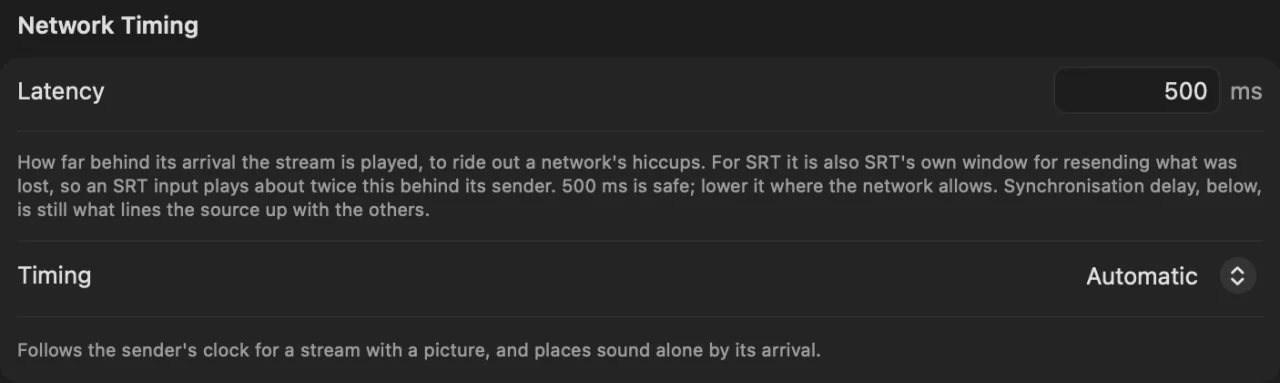
Latency is how far behind its arrival the picture is played, to ride out the network’s hiccups. 500 ms is a safe start. Lower it on a good network if you need the picture sooner; raise it if the picture or sound stutters. An SRT input plays about twice its latency behind the phone, since SRT uses that time to resend what was lost.
4. Sound, framing and colour
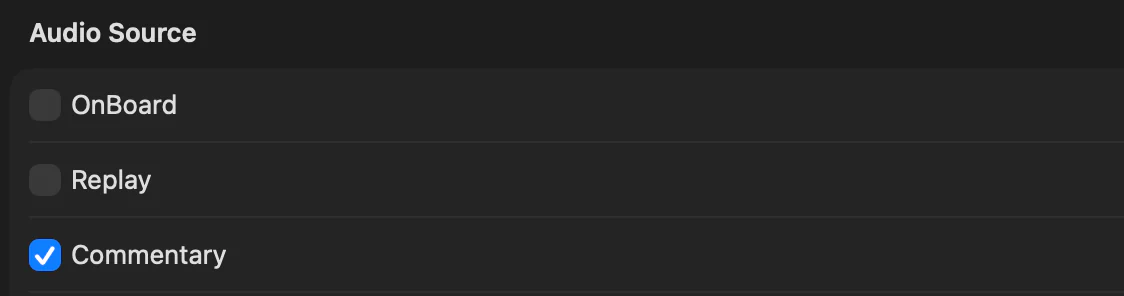
The phone sends its own microphone. If you want a better microphone instead, on the input’s Audio tab, under Audio Source, tick that microphone and untick Its own sound. A phone held upright sends a portrait picture: it is fitted to your show’s canvas, and you can crop, scale and colour-match it like any other camera.
From anywhere, over mobile data
A phone at the finish line or across town is rarely on the venue’s Wi-Fi. Set the input’s Comes in to Over the Internet instead: the phone sends to a relay server of ours and your Mac fetches the stream from there, with no open port or public address at either end. The QR code works the same way. See A remote camera over mobile data.
Or over NDI
NDI Camera, or another NDI camera app, works too: add the phone as an NDI input instead, on the same network as the Mac, and its screen shows tally, red while it is on Program and green in Preview. The app sends NDI HX, so the Mac also needs the NDI HX driver from NDI; InterDirector says so if it is missing. See Switch NDI cameras on a Mac.